
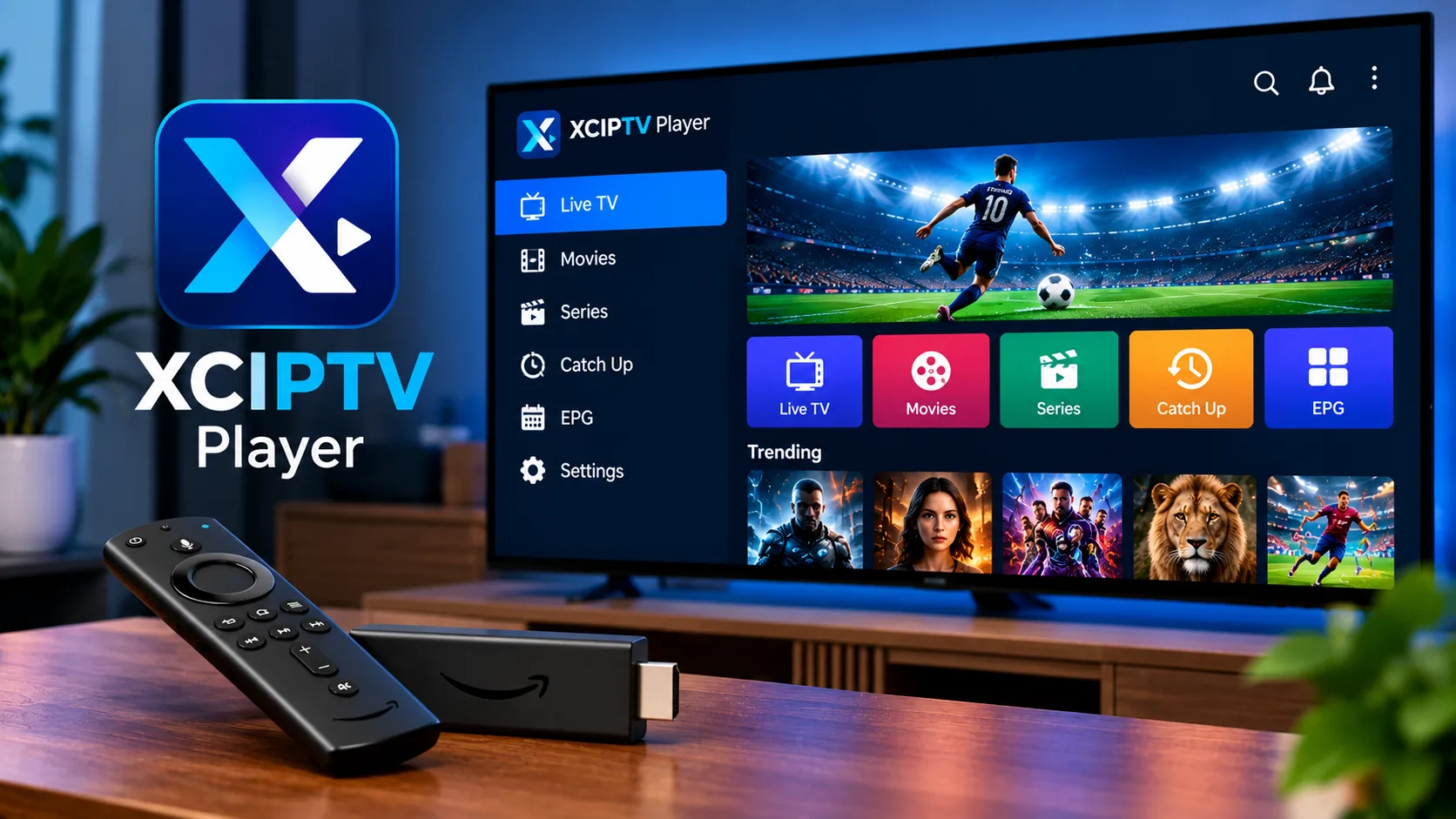
Many viewers in Sweden want a clean, reliable app for watching live channels, films and series on a television, tablet or phone. The XCIPTV Player is one of the best-known options for that job, particularly on Android devices. It is a media player, which means it plays content you already have access to rather than supplying channels itself. This guide explains what the app does, how to install it, how Xtream Codes login works, and what to check before you start streaming.
What Is XCIPTV and How Does It Work?
XCIPTV is a player application, not a streaming service. It contains no channels, no films and no series of its own. Instead, it connects to a source that you provide, such as an M3U link or an Xtream Codes account from your IPTV subscription (abonnement), and then organises that source into a tidy, remote-friendly interface.
The developer states that the app is not affiliated with any content provider. Its listing also makes clear that it does not endorse watching copyrighted material without permission from the rights holder. That position matters, and we return to it in the legal section below.
Key Features of the App
Understanding the feature set helps you decide whether the app suits your viewing habits.
Built-In Players and Navigation
The app includes two internal playback engines, ExoPlayer and VLC, so you do not need a separate third-party player. It also handles adaptive HLS streams. The layout is designed for a television remote or directional pad, which makes browsing from a sofa far less frustrating than it is in many generic apps.
EPG, Catch-Up and Recording
An electronic programme guide (EPG) is available for Xtream Codes-compatible sources and for M3U links with guide data. Depending on what your provider offers, you may also see catch-up viewing, programme reminders and scheduled recording to internal or external storage.
Films, Series and Favourites
Video on demand content appears with descriptive information, and series are grouped by season and episode. You can mark favourites across live television, films and series. A backup and restore function helps you move your settings between devices without starting from scratch.
Supported Devices and Platforms
The original application is built for Android TV, Android phones and Android tablets. Some websites that promote the player also mention versions for Samsung, LG, Roku and Windows, so it is worth checking the official store listing for your own device before downloading anything. Streaming sticks and boxes running Android TV are the most common choice, because they combine low cost with a remote-friendly screen.
System Requirements and Preparation
Good preparation prevents most early frustration. Before installing, make sure that your device has enough free storage, that its software is up to date, and that your internet connection is stable. As a rough guide, plan for about 8 Mbps for HD, 15 Mbps for Full HD and 25 Mbps or more for 4K. Wired Ethernet is more dependable than Wi-Fi, especially during live sport.
You will also need the login details from your provider. These usually come as either a playlist link or a portal address with a username and password.
How to Install XCIPTV Player Step by Step
Installing on Android TV or a Streaming Box
Open the Google Play Store on your device and search for the app by name. Confirm that the developer name matches the official listing, then select install. Once the download finishes, open the app and allow any permissions it requests, such as storage access if you plan to record.
Installing on a Phone or Tablet
The process is nearly identical. Search the store, check the developer name and ratings, install, and open the app. Always use the official store rather than unknown websites, because modified installation files are a common source of malware and stolen account details.
Xtream Codes Login and Playlist Setup
Xtream Codes is a standard login method used by many IPTV services. Instead of pasting a long playlist link, you enter a portal address, a username and a password, and the app loads the full catalogue and guide data automatically.
Adding an Xtream Codes Account
Choose the option to log in with Xtream Codes, then type the portal address exactly as your provider supplied it. Enter the username and password carefully, because capital letters and symbols matter. Save the profile, and the app should begin loading channels, films and series.
Adding an M3U Playlist
If your provider gave you a link ending in a playlist format, choose the M3U option instead and paste the address. Large lists can take a minute or two to load, so be patient on the first attempt. If you need guidance on where to find your details, the installation instructions on the Viking IPTV website cover common device setups, and the FAQ page answers frequent playlist questions.

Tips for a Smoother Viewing Experience
A few small habits make daily use much more pleasant. Create separate profiles for family members so that favourites and watch history stay tidy. Use the backup function after finishing your setup, which saves time if you replace a device. Keep the app regularly updated, because new releases often fix playback and login bugs. Finally, restart your router every few weeks, since an older router can slowly lose performance and cause buffering that looks like an app problem.
Troubleshooting Common Problems
Most issues have simple causes.
- Login fails: Retype the details by hand, and check for hidden spaces or a missing port number.
- Buffering: Test your speed, switch to Ethernet and close other apps.
- No guide data: Confirm that your source supplies EPG information.
- Crashes: Update the app, restart the device and clear the app cache.
Some users report occasional crashes or login errors in store reviews, which is normal for popular apps. If problems continue after these steps, contact your provider, since only they can check account status.
Legal Use of IPTV in Sweden
A player is neutral software, but what you stream through it is not. Swedish law protects upphovsrätt (copyright), and rights holders and myndigheter (authorities) take illegal streaming seriously. Operators of unlicensed services can face böter (fines) and other penalties, and the position for viewers is less clear-cut, so caution is wise. Enforcement practice changes, so check current guidance from Swedish authorities. In practice, choose laglig IPTV from a provider that respects rättigheter and operates transparently.
Choosing a Reliable Source
Even the best player cannot repair a weak source. Look for clear terms, broad channel coverage, HD and 4K options, responsive support and honest descriptions. You can review the available channels and content and compare IPTV subscription plans to see how a Swedish service presents its offer. Other independent providers, such as JA IPTV, also publish details about their services, so reading several sources helps you judge what is normal. Licensed streamingtjänster such as SVT Play and TV4 Play remain useful for catch-up viewing.
Final Thoughts
A sensible approach is to confirm your login details and internet speed before installing, so that setup stays quick and uneventful. For anyone who would like more information or wants to ask questions directly, it is also possible to contact via WhatsApp here: