
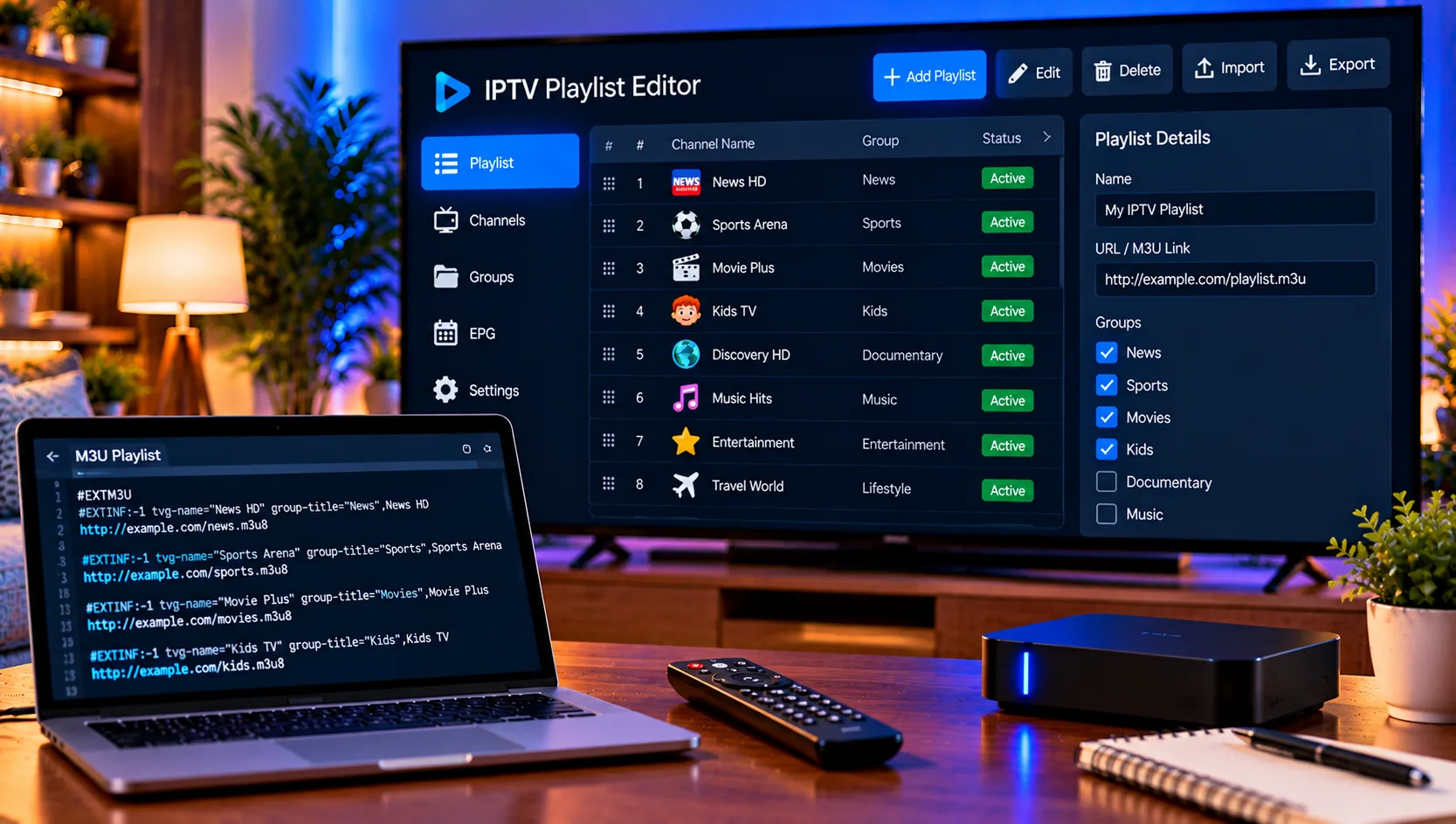
Anyone who has opened a raw M3U file knows how quickly it becomes unmanageable. Thousands of entries, mixed languages, duplicate channels and strange group names can turn a simple evening of viewing into a long scroll. An IPTV playlist editor solves this by letting you tidy, rename, merge and clean those lists before they ever reach your player. This guide explains how M3U files work, which editing tasks matter most, which tools are available, and how to stay on the right side of the law while doing it.
What Is an M3U Playlist?
An M3U file is a plain text list that tells a media player where to find each stream. Every entry usually has a channel name, a group title, an optional logo address and a stream link. Some files also include an EPG identifier, which connects the channel to its programme guide.
Because the format is just text, you can open it in any basic editor. That flexibility is useful, but it also means mistakes are easy to make. One missing line or stray character can break an entire channel. Dedicated tools make the work safer and much faster.
Why Edit Your Playlist at All?
Providers usually deliver one large list that suits everyone and therefore suits nobody perfectly. Editing lets you shape that list around your own habits.
Common reasons include removing channels you never watch, moving favourites to the top, fixing misspelled names, and deleting duplicate links that appear under several groups. Smaller playlists also load faster, which helps older streaming boxes and budget tablets. For families, trimming a list is a simple way to keep unsuitable categories out of sight.
Core Editing Tasks Explained
Most editors, whatever the platform, are built around the same handful of actions.
Renaming and Reordering Entries
Clear names make a list readable. Remove prefixes, correct capitalisation and place the channels you use daily at the top. Many tools let you drag rows or send a selected entry straight to the first position, which is the quickest way to build a personal favourites section.
Managing Groups and Categories
Groups, sometimes called categories, control how channels appear inside your player. You can rename a group, merge two similar ones, or move an entry from one group to another. A tidy structure of sport, news, films and series is far easier to navigate than a hundred loosely named folders.
Finding and Removing Duplicates
Duplicate links are among the most common problems in large lists. A good editor searches by channel name or stream address and highlights repeated entries, so you can delete the extras with a few clicks.
Merging Several Files
If you have more than one list, perhaps one for live television and another for films, merging combines them into a single file. Check for repeated entries afterwards, because merging often creates new duplicates.
Matching Channels to the Programme Guide
Programme guide data only appears when a channel carries the correct identifier. Some tools match names automatically, although fuzzy matching can occasionally pair the wrong channels. Review the results, correct obvious errors, and confirm that the guide source is linked in your player settings.
Choosing the Right IPTV Playlist Editor
The best tool depends on your device and your patience. Desktop programs usually offer the most control, while mobile apps are better for quick changes on the move.
Desktop Editors for Windows
Windows tools typically let you drag a file into the window, edit rows directly, search by name, find duplicate links and copy entries between two open windows. They suit large lists, because a keyboard and mouse make bulk changes far less tiring.
Mobile and Android TV Apps
Android applications usually focus on importing a list, browsing it by group, searching in real time and marking favourite groups. Some also load EPG data in the background and can export the finished list as a new M3U file. On a television, remote-friendly layouts make browsing comfortable from the sofa.
Basic Text Editors
For small adjustments, a plain text editor is enough. Open the file, change the channel name or group title, and save it with the correct extension. Keep a backup copy first, since a single typing error can break the list.
Step-by-Step: Cleaning an M3U List Safely
A calm, methodical process prevents most disasters.
- Save a backup copy of the original file before touching anything.
- Open the list in your chosen editor and review the group names.
- Delete channels and groups you will never use.
- Search for duplicates and remove the extra entries.
- Rename unclear entries and move favourites to the top.
- Save the result as a new file, then test it in your player.
If something looks wrong, return to the backup and try again. If you want help with loading the finished file on a particular device, the installation instructions on the Viking IPTV website cover common setups, and the FAQ page answers frequent playlist questions.

Habits That Keep Lists Tidy
Review your list every few months, because channel lists change constantly. Store edited files in a named folder with the date in the file name. Keep one master copy and one working copy, and never share your list publicly. Small, regular maintenance takes minutes and prevents the slow decline that makes people abandon their playlists.
Common Mistakes to Avoid
The most frequent error is editing the only copy of a file. Another is deleting a group without checking whether it contains channels you use. Users also forget that provider updates can overwrite local changes, so a list you refresh from a link may revert to its original form. Keeping your edited version as a separate local file avoids that problem.
Finally, never paste your login details or private links into unknown websites. Some online tools collect them, and your account could be misused.
Legal Use of IPTV in Sweden
An editor is neutral software that works only with files you supply. What those files point to still matters. Swedish law protects upphovsrätt (copyright), and rights holders and myndigheter (authorities) take illegal streaming seriously. Operators of unlicensed services can face böter (fines) and other penalties, and the position for viewers is less clear-cut, so caution is wise. Enforcement practice changes, so check current guidance from Swedish authorities. In practice, choose laglig IPTV from a provider that respects rättigheter and operates transparently.
Choosing a Reliable Source for Your Lists
Even the cleanest editing cannot rescue a poor source. Look for clear terms, broad channel coverage, HD and 4K options, responsive support and honest descriptions. You can review the available channels and content and compare IPTV subscription plans to see how a Swedish service presents its offer. Other independent providers, such as JA IPTV, also publish details about their services, so reading several sources helps you judge what is normal. Licensed streamingtjänster such as SVT Play and TV4 Play remain useful for catch-up viewing.
Final Thoughts
A sensible approach is to back up your file, make small changes and test the result before relying on it. For anyone who would like more information or wants to ask questions directly, it is also possible to contact via WhatsApp here: