
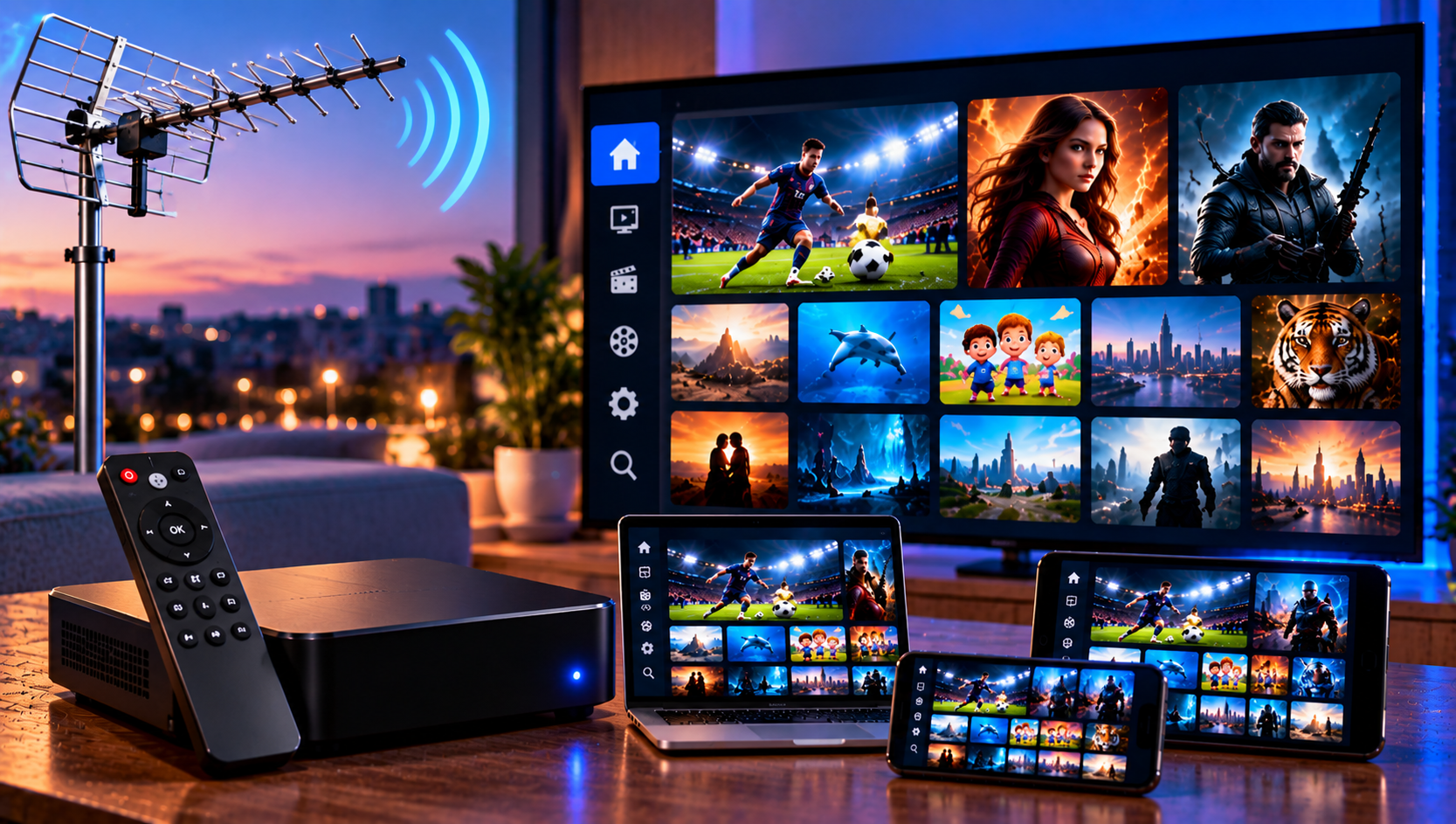
UHF IPTV is an Apple-focused media player for organizing live television, movies, series, and program guide data from compatible sources. It does not provide channels, so users need their own legally sourced playlist or subscription credentials. The app supports iPhone, iPad, Apple TV, and Mac, giving households a consistent interface across Apple devices. This guide explains installation, M3U8 and Xtream setup, EPG configuration, playback, troubleshooting, privacy, and legal considerations in Sweden.
What UHF Offers on Apple Devices
UHF supports iPhone, iPad, Apple TV, and Mac. Its official information lists M3U8 and Xtream sources alongside Plex, Jellyfin, and Emby libraries. Features include global search, an electronic program guide, favorites, catch-up, picture-in-picture, AirPlay, Chromecast, multiple audio tracks, subtitles, Trakt integration, parental controls, and content organization.
The app is a player rather than an IPTV provider. Channels, video libraries, EPG information, and account permissions come from the source you add. Viking IPTV users can review the official installation instructions before entering credentials, especially when switching devices or login formats.
How to Set Up UHF IPTV With M3U8 or Xtream
Install the application from the App Store on the Apple device you plan to use. Open it and add a playlist or source. Your provider should specify whether to use an M3U8 playlist or Xtream credentials.
Adding an M3U8 Playlist
An M3U8 source is usually supplied as a web address containing stream and account information. Copy the complete URL without changing characters, spacing, parameters, or the protocol at the beginning. Give the playlist a clear name and save it.
The player should process live channels, categories, movies, series, and guide information. Large libraries may take longer to populate on slow connections. Never share the playlist URL publicly because it may contain credentials that expose your account.
Adding Xtream Credentials
Xtream login details commonly include a server address, username, and password. Enter each value exactly as supplied. The server address may contain http or https and sometimes a port number, so avoid removing sections that appear unfamiliar.
Once authenticated, the player can organize supported content. If you are unsure which login format applies, Viking IPTV’s IPTV subscription information and setup guidance can help distinguish the subscription from the player.
Setting Up UHF on iPhone and iPad
On iPhone, the interface suits personal viewing, search, favorites, and picture-in-picture. After adding your source, check that live channels and on-demand media load correctly before adjusting advanced settings. Organize favorites early if the service has a large channel list.
The iPad provides more screen space for guide browsing and multitasking. Picture-in-picture can be useful when checking messages or browsing while a stream continues in a smaller window. AirPlay can send supported playback to a compatible television or receiver.
If you use multiple Apple devices, keep playlist names consistent. Cross-device synchronization may depend on the app tier and current feature availability, so verify the options shown in your installed version.
Setting Up UHF on Apple TV
Apple TV suits living-room viewing. Install the app from the tvOS App Store, add the supported source, and allow the library to populate. Use categories and favorites to simplify navigation with the remote.
Check video and audio output settings on Apple TV if HDR, Dolby Vision, or Dolby Atmos content does not behave as expected. These formats also depend on the source stream, television, receiver, cables, and Apple TV hardware. A feature appearing in the player does not mean every stream contains that format.
For users comparing what their subscription makes available, Viking IPTV’s content overview provides a separate reference from the player configuration itself.
Using UHF on Mac
The Mac version suits viewers who want IPTV alongside desktop work. Add the M3U8 or Xtream details and test live television, movies, and series individually. A wired connection can improve stability at a desk.
The UHF website describes a companion server for recording supported live television on a local Mac, Windows, or Linux machine. Recording depends on the source, rights, storage, configuration, and app features. Access to a stream does not automatically grant permission to record or redistribute it.
EPG, Catch-Up, Search, and Favorites
An EPG displays current and upcoming programs when compatible guide data is available. If schedules are missing, refresh the source and confirm that your provider supplies EPG information. Incorrect guide entries can originate upstream, so reinstalling the player may not solve them.
Catch-up provides earlier programs when the provider supports an archive. Global search can locate channels, films, or series across sources, while favorites and category management simplify large libraries.
Multi-audio and subtitle options depend on the media supplied. OpenSubtitles integration may help with supported on-demand content, but availability varies by title and language.
Fixing Buffering and Playback Problems
Buffering can come from the provider, home network, Wi-Fi interference, device load, or stream bitrate. Test several channels before diagnosing the whole service. If one stream fails while others work, the problem may be limited to that source.
Restart the app and router, pause large downloads, and move closer to Wi-Fi. Ethernet is often preferable for stationary Apple TV or Mac setups. Full HD and 4K streams generally need more consistent bandwidth than lower-resolution alternatives.
If login fails, recheck the server URL, username, password, and subscription status. Viking IPTV’s FAQ is a useful starting point for common account and setup questions without exposing credentials publicly.
Privacy and Account Security
Treat playlist URLs and Xtream credentials like passwords. Do not publish them in screenshots, forums, or social posts. Use recognized app stores and keep Apple operating systems updated.
UHF also advertises integrated VPN support with compatible third-party VPN providers. A VPN can change how network traffic is routed, but it does not make unauthorized content legal or replace the need for valid rights.
For another Swedish-market reference, Sverige IPTV can be reviewed independently when comparing terminology, device guidance, and service structure.

Legal IPTV and Copyright in Sweden
IPTV technology and media players are not inherently illegal. The central issue is whether the distributor has permission to provide copyrighted channels, sports, films, and other material. In Sweden, laglig IPTV discussions can involve upphovsrätt, rättigheter, abonnemang, streamingtjänster, and illegal streaming.
UHF itself states that it does not provide, host, or distribute content and that users are responsible for ensuring they have the legal right to access what they add. A polished player cannot establish whether an outside playlist is licensed.
Users should evaluate who supplies the streams, whether rights information is transparent, and whether service terms are clear. Myndigheter may investigate unlawful distribution, while consequences such as böter depend on facts, evidence, conduct, and applicable law.
Final Setup Checklist
Before regular viewing, confirm that your playlist or Xtream login loads correctly on the intended device, EPG data refreshes, favorites are organized, and the network is stable. Test subtitles, audio tracks, catch-up, casting, and higher-resolution streams separately instead of changing many settings at once.
The recommended approach is to configure one Apple device first, verify stable playback and account access, and then add other devices using the provider’s documented method. For anyone who would like more information or wants to ask questions directly, it is also possible to contact via WhatsApp here: