
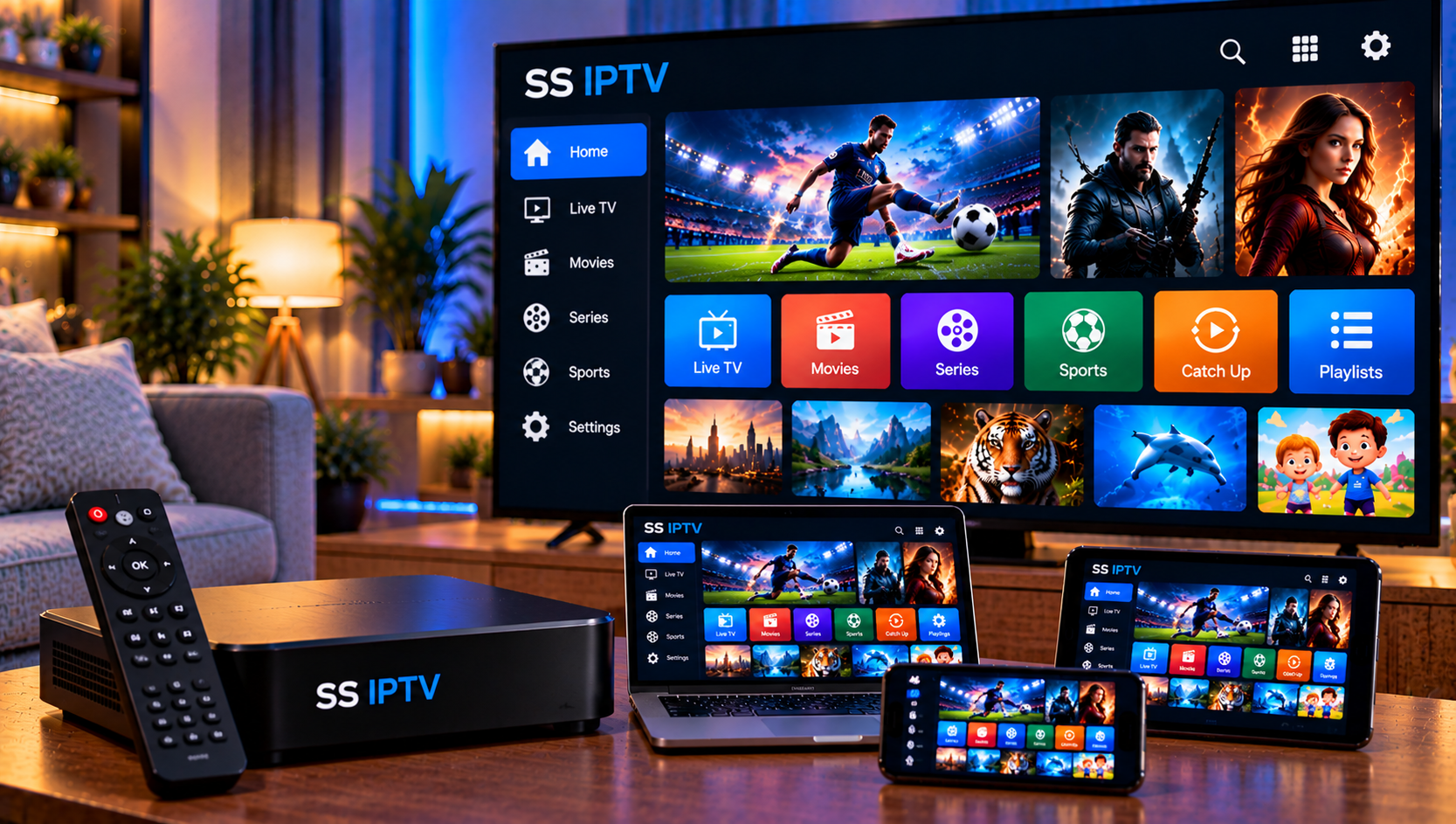
SS IPTV is a playlist-based media player designed for people who already have access to compatible streaming sources. Instead of supplying television channels itself, the app lets users add their own M3U or related playlist links and organize live TV, movies, series, radio, and favorites in one interface. For Swedish viewers in 2026, the setup tasks are choosing the correct app, importing a valid playlist, checking playback compatibility, protecting account details, and understanding whether the content source has legitimate distribution rights.
How SS IPTV Works With Your Streaming Service
The player acts as an interface between your device and the stream addresses contained in a playlist. The supplied Apple App Store listing describes support for user-provided M3U lists, multiple saved lists, favorites, television, films, series, radio, and Chromecast. The Google Play listing similarly says users bring their own lists and mentions HLS and MP4 content. Neither listing presents the app as a channel provider, which is an important distinction when configuring the service.
Your IPTV provider supplies the actual playlist or account access. If you use Viking IPTV, check the official installation instructions before entering any details, so you know which format is intended for your device.
Choosing the Correct App and Device
Before installation, verify the developer, app name, platform, and compatibility information in the store. Similar IPTV player names can appear across app marketplaces, and features may differ between iOS and Android versions. The Swedish Apple listing identifies an iPhone and iPad application that requires iOS or iPadOS 13.0 or later. It also indicates compatibility with Apple silicon Macs under the listed requirements.
How to Add an M3U Playlist
An M3U playlist is a text-based file or URL containing media locations and, often, channel names, groups, logos, or other metadata. Providers frequently send a long web address rather than a downloadable file because a remote playlist can be updated without manually replacing it on every device.
Add the Playlist Step by Step
Open the player and locate the area for playlists, lists, or sources. Choose the option to add a new list, give it a recognizable name, and paste the complete M3U or M3U8 URL supplied by your service. Check the beginning and end of the address carefully before saving.
Allow the app time to process the source. Large channel collections may take longer to organize, especially on slower hardware or networks. Once loading finishes, open several channels from different categories rather than testing only one stream.
If you are comparing what is included with your account, Viking IPTV separates its content overview from its IPTV subscription information, which helps distinguish the media source from the player used to display it.
Keep Playlist URLs Private
A playlist URL may contain a username, password, token, or other account identifier. Do not post the full address in forums, social media screenshots, public support comments, or video descriptions. Anyone who obtains working credentials may be able to use your account or cause connection-limit problems.
When asking for technical help, describe the error without revealing the secret portion of the URL. Share credentials only through a support method you trust and only when genuinely necessary.
Organizing Channels, Favorites, and Multiple Lists
A large playlist can contain hundreds or thousands of entries, so organization matters. Use categories when the source provides them, then mark frequently watched channels or programs as favorites. The competitor listings highlight favorites and multiple-list support, features that can make navigation easier when households use more than one legitimate source.

Chromecast and Playback Formats
Both supplied store listings mention casting or Chromecast functionality. When casting is available, the mobile device usually controls playback while the compatible receiver or television handles the stream. The phone and casting device should normally be connected to the same local network.
The Android listing also references HLS and MP4 playback. HLS is widely used for adaptive internet streaming, while MP4 is a common media container. Whether a specific stream works still depends on codecs, server configuration, device support, and the quality of the source.
Fixing Playlist and Loading Errors
If a playlist does not import, check that the URL was copied completely and has not expired. Extra spaces, missing characters, altered punctuation, or a broken protocol can stop the player from reaching the source.
If the list loads but channels do not play, test several entries. One unavailable channel may indicate a source problem; widespread failures can point to an expired subscription, network issue, account limit, server problem, or incompatible stream format.
Restart the app and router, test another network when practical, and make sure system software is current. For account-related questions, Viking IPTV’s FAQ provides a safer starting point than publishing credentials publicly.
Reducing Buffering and Playback Interruptions
Buffering is not always caused by the player. Wi-Fi interference, weak signal strength, household downloads, server congestion, device performance, and stream bitrate can all affect playback. HD, Full HD, and 4K sources require increasingly stable bandwidth.
Test a lower-resolution stream if available and temporarily pause large downloads. Move closer to the router or use a wired connection on devices that support Ethernet. If only one channel buffers, changing the entire network configuration is unlikely to solve a source-specific issue.
Privacy and App Permissions
Review privacy information before installing any streaming application. The Swedish Apple listing states that the developer may handle certain location, identifier, usage, and diagnostic information depending on how features are used. Google Play displays its own developer-provided data-safety disclosures. Platform privacy labels are useful references, but users should still review current permissions and policies themselves.
Keep operating systems updated, remove unused apps, and avoid modified players that request unnecessary credentials. Never assume that using a VPN changes whether a content source has legal distribution rights.
Legal IPTV and Copyright in Sweden
Using a media player or M3U format is not automatically illegal. The important question is whether the party supplying channels, sports, films, or series has permission to distribute that material. In Sweden, discussions about laglig IPTV commonly involve upphovsrätt, rättigheter, abonnemang, streamingtjänster, and illegal streaming.
A playlist that loads successfully does not establish that its contents are licensed. Users should consider the identity of the provider, the transparency of its terms, and whether rights information is credible. Myndigheter can investigate unlawful distribution, while possible consequences such as böter depend on the facts, conduct, evidence, and applicable law.
For another Swedish-market reference, Sverige IPTV can be reviewed independently when comparing terminology, device guidance, and service structures. A comparison should focus on compatibility and transparency rather than assuming identical rights or technical arrangements.
Final Setup Checklist
Before regular viewing, confirm that the correct app is installed, your playlist imports without errors, several channels play reliably, favorites are organized, and casting works if you need it. Keep the original playlist information private and stored securely in case the application must be reinstalled.
The recommended approach is to configure one device first, test the supplied playlist carefully, and change network or playback settings only when a specific problem requires troubleshooting. For anyone who would like more information or wants to ask questions directly, it is also possible to contact via WhatsApp here: