
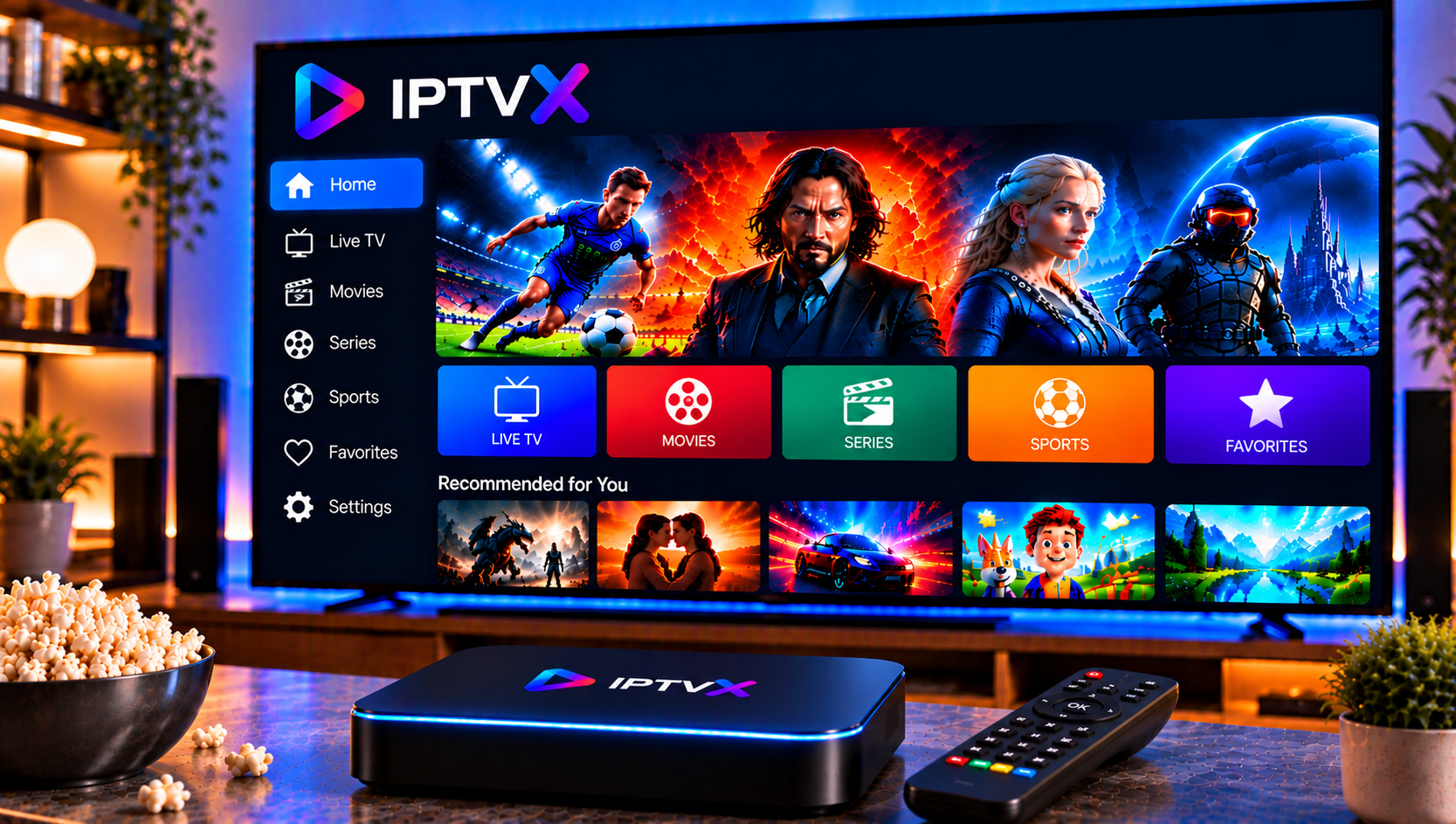
If you have been exploring IPTV in Sweden, you have probably come across IPTVX, a polished player app available for iPhone, iPad, Apple TV and Android. It does not provide channels of its own. Instead, it organises the playlists you already have into a clean interface with live TV, movies, series and a full TV guide. This guide explains how the app works, which features matter, how to install a playlist, and what Swedish viewers should know about copyright and streaming rights before they start.
What Is IPTVX and How Does It Work?
The app is developed by Bending X and works as a media player and organiser, not as a content provider. Both store listings state that no content is included. You add your own playlist, and the app turns that raw list into categories, artwork, programme information and a watch history. Because the player is separated from the content, the quality you experience depends mostly on your internet connection and on the supplier behind your playlist.
For households that already hold a subscription, this model is convenient. The same playlist can be loaded on a phone, a tablet and a television, and the interface stays consistent across all of them. Anyone comparing options can browse the full channel offering to see what a typical playlist may contain in terms of live channels, sports, films and series.
Key Features Worth Knowing
Live TV and TV Guide
Live TV is the core of the app. Channels can be sorted, hidden, favourited and grouped into categories, which is helpful when a playlist contains thousands of entries. The EPG grid shows what is on now and next, and the app can often find a guide file automatically if the server provides one. You can also add a custom EPG address, including compressed files. Catch-up, reminders and quick channel zapping complete the picture, as long as your provider supports them.
Movies, Series and Library Management
Film and series sections pull in posters, descriptions and cast details, so a plain list starts to feel like a real streaming platform. A continue-watching row remembers your position, a next-episode button helps during long evenings, and recently added content is easy to spot. Parental controls let parents lock categories, which many families in Sweden appreciate. Multiple playlists are supported too, so one profile can hold a family list while another keeps separate content.
Playback, Devices and Sync
The Apple version supports Dolby Vision, HDR10 and HLG where the source allows it, along with picture-in-picture, AirPlay and external subtitles. The Android version is designed separately for phones, tablets and Android TV, with remote-friendly navigation. Settings and watch history can sync through iCloud on Apple devices and Google Drive on Android, so switching between devices does not mean starting from scratch.
Supported Playlist Formats
Most IPTV suppliers deliver content in one of three ways:
- M3U or M3U8 links: a single web address that contains channels, and sometimes films and series.
- Xtream API details: a server address, username and password, which usually gives the richest result with organised categories.
- Local or network sources: playlist files stored on a NAS or computer, which the Apple version can read through SMB or Plex.
Xtream login is often the smoothest route because it loads categories, artwork and guide data together. An M3U link works well too, although loading time grows with the size of the list.
How to Install a Playlist Step by Step
The process takes a few minutes once your details are ready. Device-specific guidance is also available in these installation instructions for those who prefer a visual walkthrough.
- Download the player from the App Store or Google Play and open it.
- Choose the option to add a new playlist.
- Select the format your supplier gave you, either an M3U link or an Xtream login.
- Enter the address, or the server, username and password, exactly as written.
- Add an EPG address if the guide does not load automatically.
- Save the playlist and wait while categories and channels are indexed.
- Open Live TV, pick a channel and test playback for a minute before adjusting settings.
Copy your details carefully. A stray space or a missing character is the most common reason a playlist fails to load.

Legal Considerations in Sweden
A player is only as lawful as the content played through it. Swedish copyright law (upphovsrätt) protects broadcasts, sports rights and films, and rights holders and myndigheter actively pursue illegal streaming. Penalties for distributing unlicensed content can include böter and damages, so the difference between watching licensed material and sharing unlicensed material matters. Anyone considering laglig IPTV should ask a few practical questions before signing up:
- Does the supplier explain how its channel rights are obtained?
- Are terms, pricing and cancellation clear in writing?
- Is there a reachable support channel and a published FAQ?
Many viewers combine IPTV with traditional streaming services, and licensed platforms remain a useful reference point for what proper rights look like. Whichever route you take, stay informed about current rules and treat unusually cheap offers with caution. The FAQ page is also a helpful place to read common questions about how services and setups work.
Subscriptions and App Costs
There are usually two separate costs: the player and the content. The app is free to download, with optional paid tiers that unlock premium features such as family sharing or extra themes. Some store reviewers felt the upgrade prompts were unclear, so it is worth reading exactly what a purchase includes.
The content side is separate. An IPTV subscription is normally billed per period, and shorter and longer options exist so that you can test stability first. It helps to compare the available IPTV subscription plans in terms of duration, device limits, and included quality, from HD and Full HD to 4K.
Troubleshooting Common Issues
Most problems have simple fixes:
- Buffering: test your speed first. HD streams generally need a steady 10 Mbps, while 4K is more comfortable above 25 Mbps. A wired connection or strong 5 GHz Wi-Fi helps on televisions.
- Empty TV guide: check that the EPG address is correct and give it time to import.
- Subtitles missing while casting: try playing directly on the device, since some users have reported limitations with Chromecast.
- A category fails to load: use the retry action instead of reloading the whole playlist.
- Codec or audio problems: switching to another built-in player in the settings often resolves them.
Readers who want to see how other Swedish providers describe their setup and plans can also look at Sverige IPTV for general comparison.
Choosing the Right Setup in 2026
A good setup rests on three things: a capable player, a stable supplier and a connection that matches your screen. If you are unsure, start with a short plan, test on one device and expand only when playback is consistent. Keep your login details private and update the app regularly.
For anyone who would like more information or wants to ask questions directly, it is also possible to contact via WhatsApp here: . A sensible recommendation is to read the written terms and test playback on a single device before committing to a longer period.