
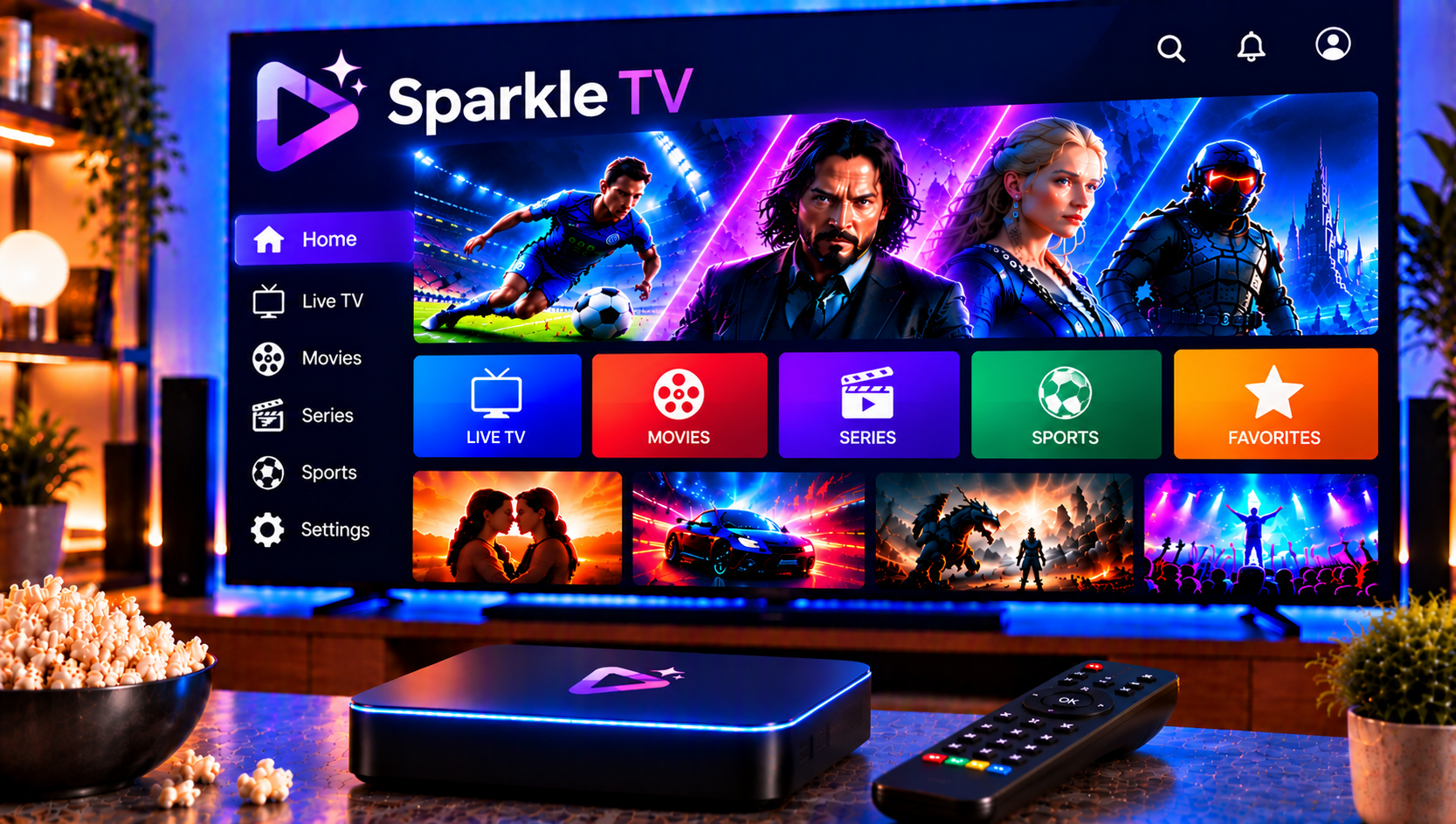
If you watch live television on an Android TV box, a Google TV set or a Fire TV Stick, you may have come across Sparkle TV as a player that promises a cleaner way to browse channels. It is an IPTV player with a built-in programme guide and recording tools, and it does not include any channels of its own. This guide explains what the app does, how to set it up, which features sit behind the Plus upgrade, and what viewers in Sweden should know about copyright before connecting a source.
What Is This IPTV Player and Who Is It For?
The app is built mainly for television screens. It is designed for Android TV, Google TV and Fire TV devices, with a mobile version that is used mostly to manage the Plus upgrade. A free version covers the basics, while the paid Plus tier unlocks the more advanced tools.
The official store listings make the point clearly: the player supplies no channels, sources or media. You connect a service of your own, and you are responsible for making sure that content is lawful. That makes it a good fit for people who already have a playlist or login and want a more polished interface, but it is not a substitute for a subscription.
Core Features Worth Knowing
Guide, Search and Playback
The electronic programme guide shows what is on now and next, with channel logos and programme images where the data allows it. Search helps you find channels quickly, and the player handles multiple audio tracks and subtitles, including closed captions and teletext. Home screen integration on Android TV adds recent channels and a play-next row, so you can resume viewing without digging through menus.
Plus Features
The Plus upgrade adds the tools that most heavy users want. These include:
- Favourites and sorting: keep the channels you use most at the top.
- Built-in DVR and timeshift: record programmes or pause and rewind live television.
- Multiview and picture-in-picture: watch more than one channel at once.
- Video on demand: browse catch-up, films and series where the source supports them.
- Multiple sources: combine several playlists or services in one place.
Plus is bought through Google Play on an Android device and can then be shared to other devices, including Fire TV, through the app settings.
Supported Source Types
The player works with M3U playlists, Xtream Codes logins and XMLTV guide data. It also supports several recording and tuner back ends, such as HDHomeRun, Jellyfin, Tvheadend and Stalker Portal, which appeals to home-server users. Most households will only need an M3U link or an Xtream login from their supplier.
How to Set Up the App Step by Step
The process takes a few minutes once your details are ready. Device-specific guidance is also available in these installation instructions for readers who prefer a visual walkthrough.
- Install the app from Google Play on Android TV or Google TV.
- On Fire TV devices where it is not listed in the store, sideload it only from a trusted source and scan the file first.
- Open the player and choose the option to add a new source.
- Select M3U, Xtream Codes or another source type.
- Enter the link, or the server address, username and password, exactly as supplied.
- Add an XMLTV guide address if the guide does not load automatically.
- Select the channels, playlists and categories you want to keep.
- Save the source and wait while the channel list is indexed.
- Open a channel and test playback for a minute before changing any settings.
A stray space or a missing character is the most common reason a source fails to load, so copy details carefully.
If the guide stays empty after the first import, check the XMLTV address and give the app a few minutes to finish downloading the data. If a single channel fails while others work, the cause is almost always the source rather than the player. Restarting the app or the device usually clears temporary errors.
Sparkle TV Review: Strengths and Limits
What Works Well
The interface is designed for a remote control, which makes navigation comfortable on a large screen. The guide is clear, the recording and timeshift tools are rare in free players, and support for several source types makes it flexible. Home screen integration is a thoughtful touch for everyday viewing.
What to Keep in Mind
Many of the best features require the Plus upgrade, and that purchase depends on Google Play, which can be awkward on Fire TV devices. Public ratings are still thin, so it is wise to test the free version first. Playback quality depends on the source, the connection and the device, not on the player alone.
Tips for Stable Playback
A few small habits improve stability on almost any player:
- Check your speed: HD needs a steady 10 Mbps, while 4K is more comfortable at 25 Mbps or above.
- Use a cable or strong 5 GHz Wi-Fi on television boxes.
- Restart the router if channels buffer during busy evenings.
- Update the app and the device software regularly.
- Switch the internal player in settings if one channel refuses to start.
Legal Considerations in Sweden
A player is only as lawful as the content played through it. Swedish copyright law (upphovsrätt) protects television channels, sports broadcasts, films and series, and the rights (rättigheter) to distribute them are normally licensed. Rights holders and myndigheter actively pursue illegal streaming, and penalties for distributing unlicensed content can include böter and damages.
Anyone who wants a laglig IPTV setup should ask a few practical questions before signing up with a supplier:
- Does the supplier explain how its content is licensed?
- Are terms, conditions and cancellation rules published in writing?
- Is there a visible support channel and a published FAQ?
Many households combine IPTV with traditional streaming services, and licensed platforms remain a useful reference point for what proper rights look like. The FAQ page also answers common questions about how these services work.
Choosing a Playlist Source
The player and the playlist are two separate decisions. Once the app is installed, your experience depends on the supplier behind the playlist, including channel coverage, stability during busy evenings, and the clarity of the terms. Readers can browse the full channel offering to see how a published lineup of live channels, sports, films and series is presented, and compare the available IPTV subscription plans by duration, device count and included quality, from HD and Full HD to 4K. Independent sites such as Nordic IPTV King can also help readers see how other suppliers describe their services.
Final Thoughts
A good setup rests on three things: a reliable player, a trustworthy source and a connection that matches your screen. Start with one device, confirm that channels, guide data and playback behave as expected, and only then add more screens. Keep your login details private and update the app regularly.
For anyone who would like more information or wants to ask questions directly, it is also possible to contact via WhatsApp here: . A sensible recommendation is to read the written terms and test playback on a single device before committing to a longer period.