
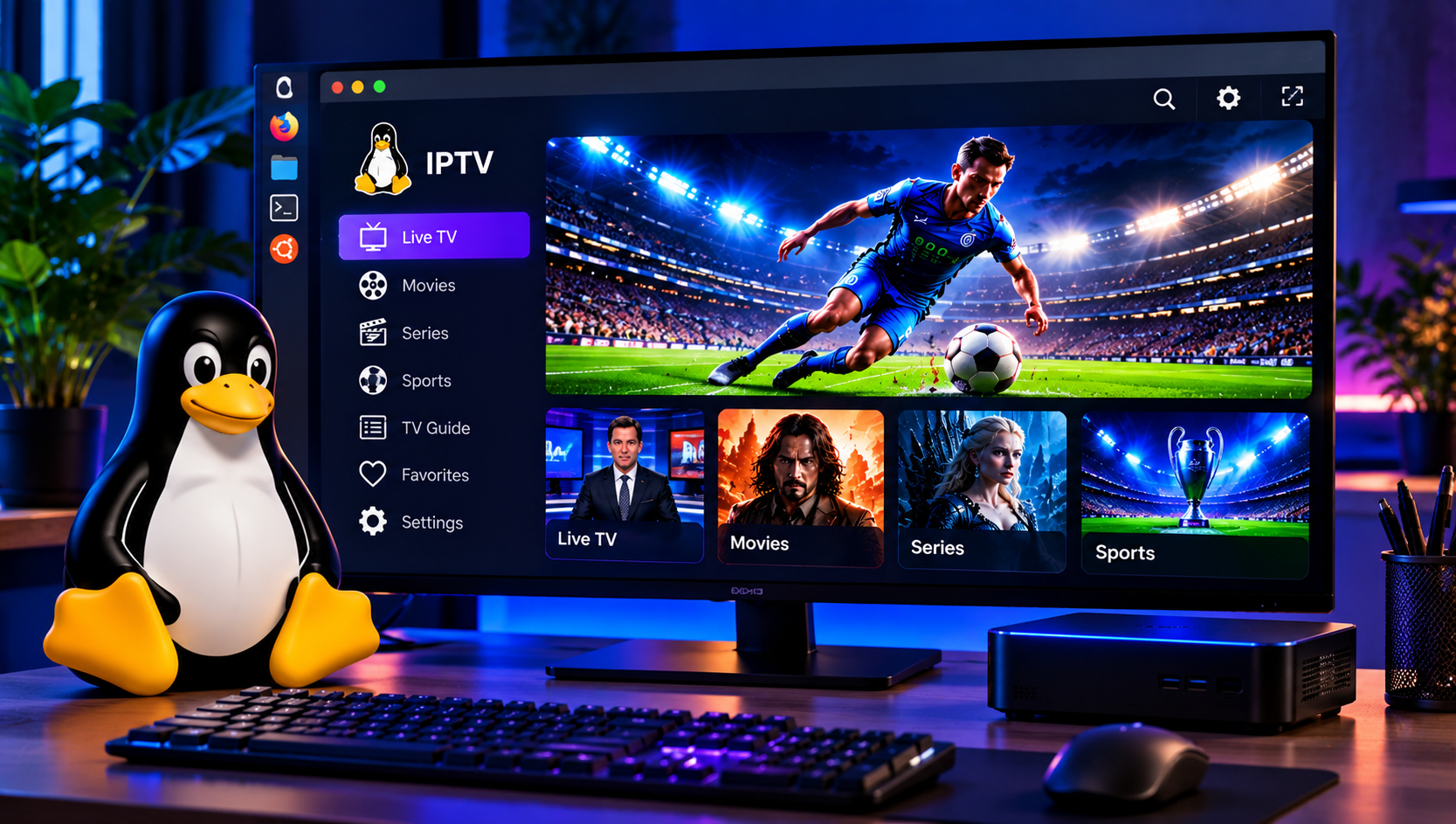
Linux users have always enjoyed the freedom to choose their own tools, and watching television is no exception. Setting up IPTV on Linux is far simpler than most people expect, because the platform already offers excellent media players and a healthy ecosystem of open-source apps. This guide explains which players work best in 2026, how to install them, and what viewers in Sweden should understand about legality before pressing play.
What IPTV Means for Linux Desktop Users
IPTV stands for Internet Protocol Television. Instead of arriving through an aerial, cable or satellite dish, live channels, films and series are delivered over a normal internet connection. Most providers supply an M3U playlist link, Xtream Codes login details or an EPG file, which is the electronic programme guide. A player reads that information and displays the channels in a clean list.
Because these are open standards, almost any capable Linux media player can handle them. Community discussions on forums such as Reddit show that Linux users keep asking the same questions: which player is stable, how to load a working programme guide, and how to avoid buffering on older hardware or Wayland desktops. Roundups like the LinuxLinks list of fourteen free players confirm that choice is rarely the problem. The real task is matching the right player to your setup.
Is IPTV Legal in Sweden?
Before installing anything, it helps to understand the legal side. IPTV technology itself is perfectly legal. What matters is where the content comes from. Under Swedish upphovsrätt, or copyright law, television channels and sports broadcasts are protected, and rights holders license them for distribution. A laglig IPTV service operates with the necessary rättigheter, while illegal streaming offers premium content without permission.
Myndigheter and rights organisations have increased their attention in recent years, and users of unlicensed sources can face böter or civil claims. The safest approach is to read the provider’s terms, confirm that the abonnemang is clearly described, and choose streamingtjänster that publish transparent information. Viewers who want an overview of what a licensed catalogue can look like can browse the available channels and content categories before deciding.
Best IPTV Players for Linux in 2026
Every player below is free, runs on mainstream distributions and supports M3U playlists. Choose according to how much control you want.
VLC Media Player
VLC remains the most reliable all-rounder. It opens M3U playlists directly, handles almost every codec, and works on Ubuntu, Fedora, Debian and Arch. It lacks a polished channel guide, but for simple live viewing it is hard to beat. Install it with the package manager or Flatpak.
mpv
mpv is lightweight, fast and ideal for older laptops or minimal desktops. Running a playlist is as simple as opening it from the terminal. Users who prefer keyboard control and low resource use often pair mpv with a terminal channel picker, though it offers no built-in programme guide.
Hypnotix
Developed by the Linux Mint team, Hypnotix presents channels, films and series in a tidy interface similar to a streaming app. It supports M3U playlists and Xtream logins, which makes it one of the friendliest choices for beginners.
IPTVnator
IPTVnator is a cross-platform application with playlist management, favourites, EPG support and a modern layout. It is available as a Flatpak, Snap or AppImage, so it suits almost any distribution.
TVHplayer and yuki-iptv
TVHplayer connects to a TVHeadend server for live viewing and recording, which suits home-server enthusiasts. yuki-iptv focuses on EPG support, channel grouping and timeshift-style features, making it a strong option for anyone who wants a full programme guide.
Kodi with PVR IPTV Simple Client
Kodi works best for living-room setups on a mini PC. The PVR IPTV Simple Client add-on loads an M3U playlist and EPG file, then presents a complete television experience that works with a remote control.

How to Set Up IPTV on Linux Step by Step
Step 1: Install a Player
On Ubuntu or Debian, VLC installs with sudo apt install vlc. Fedora users can enable RPM Fusion and run sudo dnf install vlc, while Arch users rely on sudo pacman -S vlc. For a sandboxed alternative, Flatpak is available through Flathub on nearly every distribution: flatpak install flathub org.videolan.VLC. Kodi users can add the IPTV add-on with sudo apt install kodi kodi-pvr-iptvsimple.
Step 2: Add Your Playlist
Open the player and choose to open a network stream or playlist. Paste the M3U link or enter your Xtream details exactly as supplied. In VLC, press Ctrl+N to open a network stream. In Hypnotix and IPTVnator, add a new provider from the main menu.
Step 3: Load the Programme Guide
If your provider offers an EPG file, add its URL in the player’s settings. Allow a few minutes for the data to download, because large guides can take time on the first load.
Step 4: Test and Tune
Start with one HD channel and one sports channel to check stability. Enable hardware acceleration in the player’s video settings to reduce CPU load, particularly for Full HD and 4K streams. Device-specific guidance is also collected on the IPTV setup instructions page, which covers several platforms alongside Linux.
Fixing Buffering, EPG and Audio Problems
Most issues have simple causes. Buffering usually points to a congested Wi-Fi connection, so switching to Ethernet often helps. If you use a VPN, try a nearby Swedish server, since distant routes add latency. Missing programme guide data is generally a wrong EPG address or a channel ID mismatch. Audio drift can be solved by changing the audio output between PipeWire and PulseAudio, and Wayland users may need to switch the player’s video output driver. Updating the player also prevents many playback errors.
Choosing a Subscription and Device Setup
Quality depends as much on the service as on the player. Look for stable servers, clear channel lists, HD, Full HD and 4K options, and support that answers questions in plain language. Compare each abonnemang by duration, number of simultaneous connections and device compatibility. Sweden-focused guides such as Sverige IPTV show how other providers describe their offering, and the IPTV subscription options published by Viking IPTV make it easy to compare plan lengths calmly.
Many households also pair a Linux desktop with a smart TV, Android box or phone.
Common Questions About Streaming on Linux
Do I need a special Linux distribution?
No. Ubuntu, Linux Mint, Fedora, Debian, Arch and their derivatives all handle IPTV well.
Which player is best for beginners?
Hypnotix and VLC are the easiest starting points.
Can I record programmes?
Yes. TVHplayer with TVHeadend and Kodi both support recording, depending on the provider. Further answers are collected in the frequently asked questions.
Final Thoughts
IPTV works well on Linux when the player, network and source are chosen carefully. Start with VLC or Hypnotix, move to IPTVnator or yuki-iptv when you want a programme guide, and always confirm that the service respects copyright and rättigheter. A sensible recommendation is to begin with a short test period and a simple player such as VLC before settling on a longer plan. For anyone who would like more information or wants to ask questions directly, it is also possible to contact via WhatsApp here: