
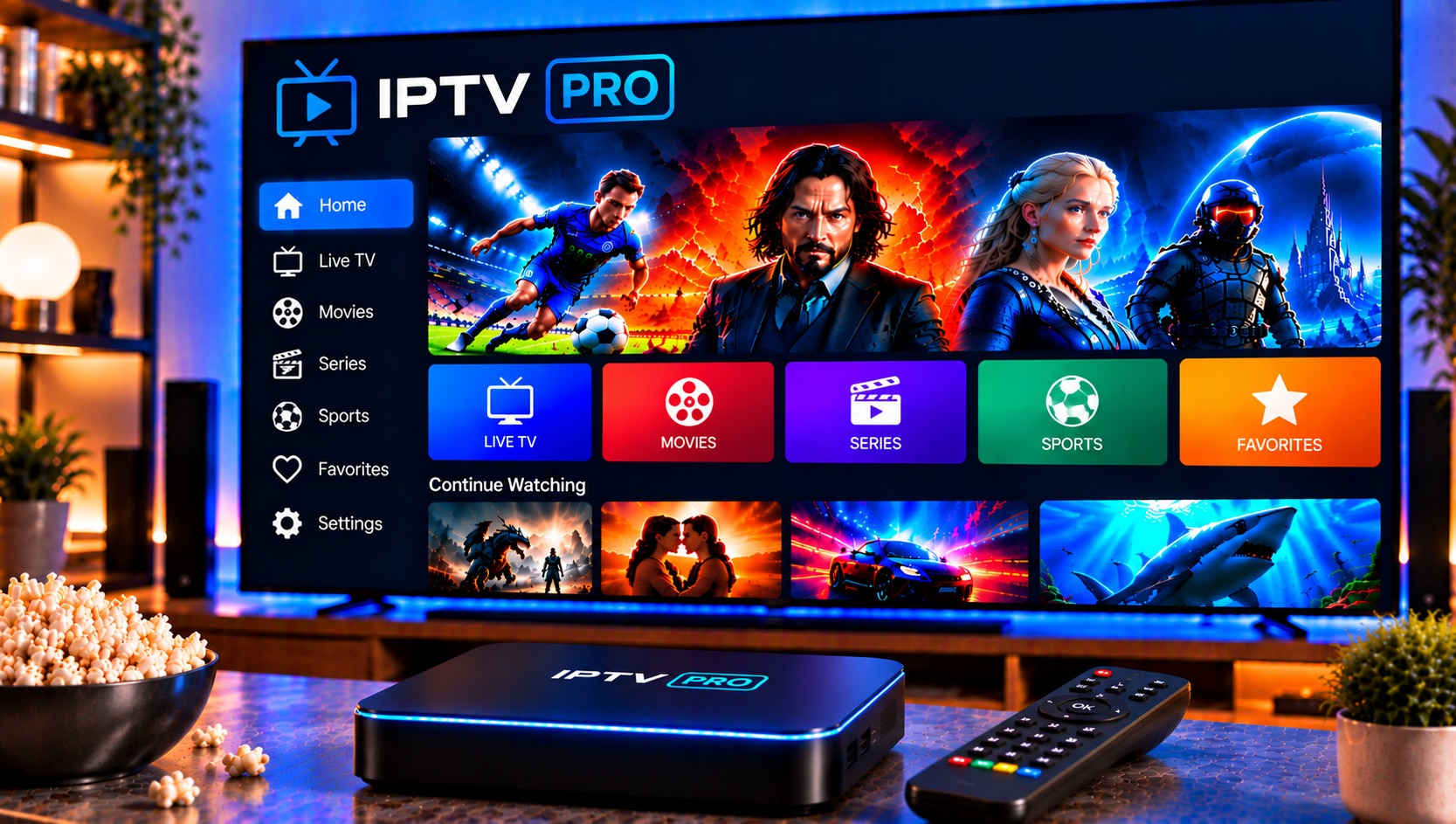
Anyone who has searched for IPTV Pro will quickly notice that the name is shared by several apps, which makes it hard to know what you are actually installing. In short, these are media players: they organise live TV, films and series from a playlist that you add yourself, and they do not include any channels. This guide explains how the best-known versions work, how to install them, how to add an M3U playlist, which features are worth knowing about, and what viewers in Sweden should understand about copyright before they start streaming.
What the App Is and Is Not
The Android version available on Google Play is a paid player developed by Alexandr Sofronov. It is built for people who already have a playlist from an internet provider or another live TV source, and it states plainly that it supplies no media content. A separate website, theiptvpro.com, promotes a player that is also branded Xtream IPTV and IPTV Smart Player, with apps for iOS and Android. The branding overlaps, but the principle is identical in both cases: the app is only the container, and the content comes from elsewhere.
That distinction matters for expectations. A good player can make a long playlist easier to browse, search and watch on a phone, tablet, set-top box or television.
Core Features Worth Knowing
Playlist and Guide Support
The Android player reads M3U and XSPF playlists and keeps a history of the ones you have used, which is handy when you switch between sources. It supports electronic programme guides in XMLTV and JTV formats, so channels can show what is on now and next. It can also play multicast streams through a UDP proxy installed on a home network, a feature that suits more technical users with a local setup.
Views and Players
Channels can be shown as a list, a grid, or tiles, depending on the screen and on how large your playlist is. The app can use its built-in video player or hand off playback to an external one, which is useful when a particular stream refuses to start.
Parental Control, Startup and Convenience
Parental control lets parents restrict access to selected content. The paid version removes advertising, can start automatically when a device boots, which is helpful on set-top boxes, resumes the last channel you watched, and keeps a longer playlist history. The website version adds favourites, recently played lists, separate sections for live TV, films and series, and smart filters for tidying categories.
M3U, M3U8, XSPF and Xtream Explained
Most setup problems come from not knowing which format a supplier has provided, so it helps to know the basics.
- M3U and M3U8: a text playlist, usually delivered as a web link or a file, that lists channel names, logos and stream addresses.
- XSPF: an XML-based playlist format that some Android players accept.
- Xtream Codes login: a server address, username and password that load channels, films, series and often the guide together.
An M3U link is the simplest to share, while an Xtream login usually produces a tidier library with proper categories. If a supplier offers both, trying the Xtream login first is often the smoother choice.

Installing IPTV Pro Step by Step
The installation takes a few minutes on most devices. Device-specific instructions are available in these installation instructions for readers who prefer a guided walkthrough.
- Open Google Play or the App Store and search for the player you want to use.
- Check the developer name, because several similarly named apps exist.
- Install the app and open it for the first time.
- Choose the option to add a playlist.
- Paste your M3U link, select an M3U8 or XSPF file, or enter your Xtream login details.
- Add an XMLTV guide address if the guide does not load automatically.
- Save the playlist and wait while the channel list is read.
- Open a channel and test playback for a minute before changing any settings.
Enter every detail exactly as written. A stray space, a missing letter or an expired link is the most common reason a playlist fails to load.
Troubleshooting Common Problems
Most issues have simple causes, and a few checks usually solve them:
- Playlist will not load: confirm that the link is complete and still active, then try again on a different network.
- Channels buffer: test your speed first. HD generally needs a steady 10 Mbps, while 4K is more comfortable at 25 Mbps or above. A cable connection or strong 5 GHz Wi-Fi helps on televisions.
- No programme guide: check the XMLTV address and allow time for the first import.
- A single channel fails: try the external player option or restart the app.
- Missing channels: remember that the app shows only what the playlist contains.
Legal Considerations in Sweden
A player is only as lawful as the content played through it. Both the Google Play listing and the website version state that the app does not host or provide content, and the Android developer also says it does not endorse streaming copyrighted material without the rights holder’s permission. That position reflects Swedish copyright law (upphovsrätt), which protects television channels, sports broadcasts, films and series, while the rights (rättigheter) to distribute them are normally licensed.
Rights holders and myndigheter actively pursue illegal streaming, and penalties for distributing unlicensed content can include böter and damages. Anyone who wants a laglig IPTV setup should ask a few practical questions before signing up with a supplier:
- Does the supplier explain how its content is licensed?
- Are terms, conditions and cancellation rules published in writing?
- Is there a visible support channel and a published FAQ?
Many households combine IPTV with traditional streaming services, and licensed platforms remain a useful reference point for what proper rights look like. The FAQ page also answers common questions about how these services and setups work.
Choosing a Playlist Source
The app and the playlist are two separate decisions. Once a player is installed, the quality of your experience depends on the supplier behind the playlist, including channel coverage, stability during busy evenings, and the clarity of the terms. Readers can browse the full channel offering to see how a published lineup of live channels, sports, films and series is presented, and compare the available IPTV subscription plans by duration, device count and included quality, from HD and Full HD to 4K. Independent sites such as Monster IPTV can also help readers see how other providers describe their services.
Swedish viewers often have specific needs, such as Nordic channels, local sports and support that works in their own time zone, so it is worth checking that a source covers them before committing.
Final Thoughts
A good setup rests on three things: a reliable player, a trustworthy playlist source and a connection that matches your screen. Start with one device, confirm that channels, guide data and playback behave as expected, and only then add more screens.
For anyone who would like more information or wants to ask questions directly, it is also possible to contact via WhatsApp here. A sensible recommendation is to read the written terms and test playback on a single device before committing to a longer period.