

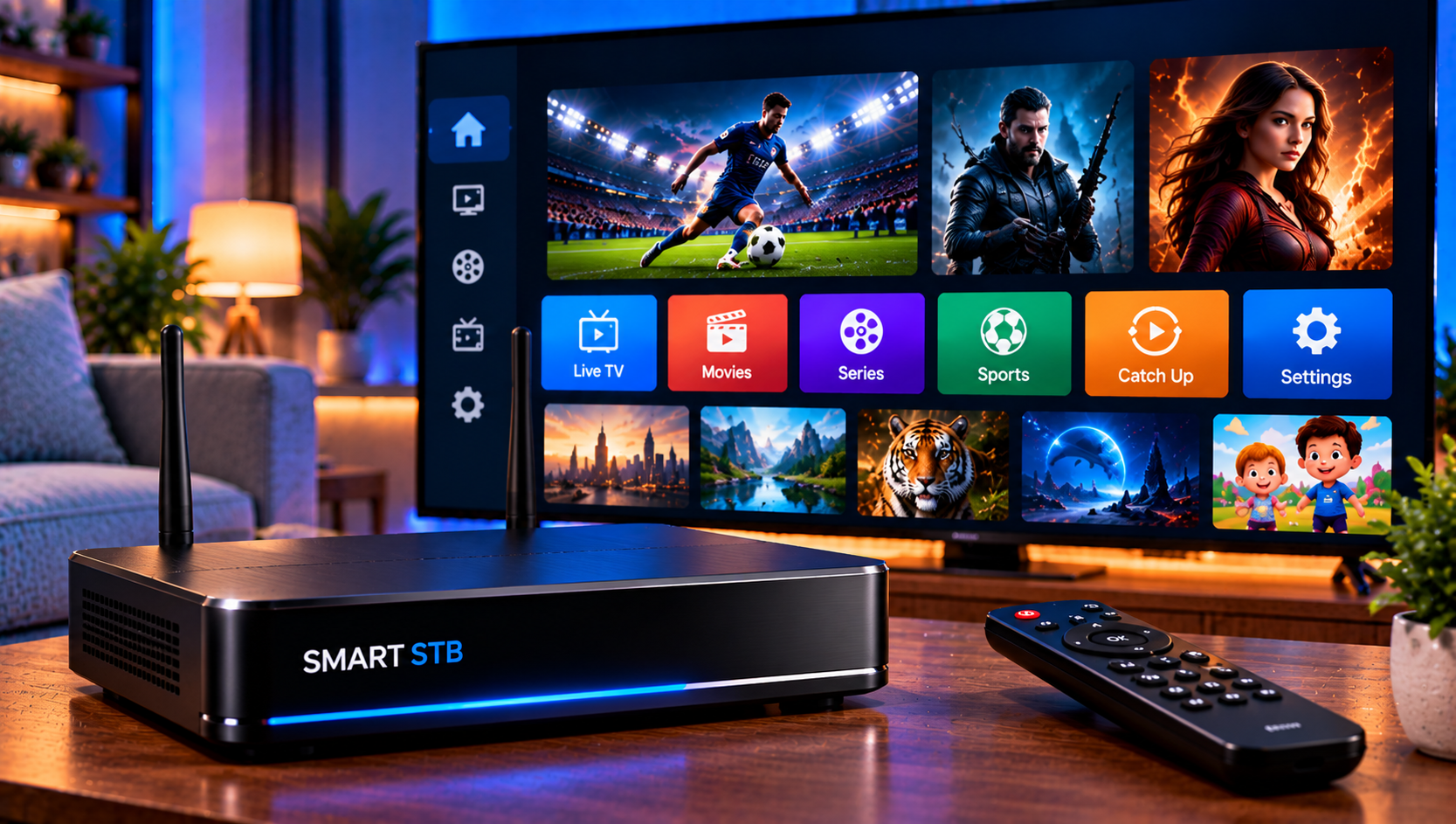
Smart stb is an IPTV player that connects televisions and streaming devices to a provider’s portal without a traditional set-top box. The app does not include channels or a subscription. Instead, viewers enter portal information supplied by their provider for live TV, video-on-demand, guides, and supported features. This guide explains portal URLs, activation, MAC addresses, troubleshooting, and legal considerations for Swedish viewers in 2026.
How Smart STB Works With an IPTV Provider
The app sits between your television and the service supplying streams. Google Play describes it as software that can replace a provider’s set-top box and connect to popular middleware portals, but it does not include streams or playlists. Apple’s listing also requires a valid streaming subscription and lists live TV, video club, M3U playlists, favorites, search, subtitles, timeshift, and TV archive among supported functions.
An app license, portal address, and IPTV subscription are separate things. The application provides the player environment; your provider supplies account or portal access. Viking IPTV users can review the official installation instructions before changing portal settings because configuration can vary by device and account.
What Is a Portal URL?
A portal URL is the web address the player uses to reach the middleware system behind an IPTV service. It may resemble an ordinary website address, but it points the app toward the provider’s portal. Enter it exactly as supplied, including http or https, any port number, and the complete path.
Do not remove parts because they appear unnecessary. One missing character can prevent loading. Official support documentation says registered users can add or change a portal from their subscription area, and some versions also allow portal changes from the television interface.
Portal URL Versus M3U Playlist
A portal and an M3U playlist are different delivery methods. Portal setups can provide categories, guide data, account information, and navigation through middleware. M3U is a playlist format containing stream locations and related metadata.
The Apple listing confirms M3U playlist support, but use the login method your provider recommends for your device. Converting account details through unknown websites can introduce errors and expose private credentials.
Understanding Activation and MAC Addresses
Activation can mean two things. The player may require an active app license, while the IPTV provider may also need to recognize the device before allowing portal access. Separating these steps prevents an app licensing problem from being mistaken for an inactive television subscription.
Portal systems may identify a device through a MAC-style identifier. Official provider documentation refers to a Virtual MAC used with IPTV portals and a separate software or device identifier for app management. Providers may associate an account with one registered device, so avoid changing or sharing these identifiers without a reason.
A Safe Activation Sequence
Install the official application from a supported store, open the device information or settings area, and identify the details requested by your provider. Confirm the portal URL. If the provider must register a Virtual MAC or another identifier, send only the requested value through a trusted support channel.
Then complete any app-license activation required by the application. The Apple version history notes in-app license activation and account-based license transfers in newer releases, so methods can differ by platform and version. Restart the app after changes and allow the portal time to load.
Setting Up the Portal Correctly
Start with a stable internet connection. Open the app, locate portal or server settings, and enter the complete address exactly as provided. Save the configuration and restart the application if requested.
When the portal connects, you should see the categories and content available through your provider. Viking IPTV explains its IPTV subscription options separately from its content overview, helping distinguish the streaming service from the player.
Avoid copying portal details from random tutorials. A portal address is specific to the service you use and should not be posted publicly.
Fixing Loading, Login, and Playback Problems
If the screen remains on “Loading Portal,” check whether the television can access other internet services. Official support recommends wired LAN where possible because connection quality affects performance. Restart the router and device before changing advanced settings.
If the portal rejects access, verify the address and ask the provider whether the registered device identifier is correct. Do not repeatedly reset the player unless support recommends it, because resets can remove working configuration.
For playback errors, test several channels or on-demand items. One failed stream may indicate a source problem; failures everywhere suggest an account, portal, network, or decoding issue. If live TV works but on-demand media fails, ask the provider to check portal compatibility.
Improving Streaming Stability
Streaming quality depends on Wi-Fi interference, router placement, broadband congestion, server load, device performance, and stream bitrate. Full HD and 4K video require a steadier connection than lower-resolution streams.
Use Ethernet when practical. If Wi-Fi is necessary, keep a strong signal and pause large downloads while testing. If one quality level buffers repeatedly, compare another stream before assuming the entire service is unstable.
Features Worth Configuring
Once playback works, organize favorites and categories so regularly watched channels are easy to reach. Search and sorting help with large libraries, while subtitles and alternative audio tracks are useful when the source provides them.
Timeshift and TV archive can add flexibility, but availability depends on both the application and the provider’s portal. An archive option does not guarantee that every channel has catch-up data.
For another Swedish-market reference, Sverige IPTV can be reviewed independently. Compare compatibility, documentation, connection limits, and content rights rather than assuming every service uses identical settings.
Privacy, Credentials, and Device Security
Treat a portal URL, Virtual MAC, username, password, playlist address, and activation information as private account data. Do not publish screenshots that expose these details. Someone with valid credentials or a usable device identifier may interfere with your access.
Install software from recognized stores, keep the television operating system updated, and avoid websites that ask you to upload private details to convert playlists or activate accounts. Viking IPTV’s FAQ is a safer starting point for setup questions.
Legal IPTV and Copyright in Sweden
Using an IPTV player is not inherently illegal. What matters is whether the distributor holds rights to television, sports, or copyrighted material. In Sweden, discussions about laglig IPTV involve upphovsrätt, rättigheter, abonnemang, streamingtjänster, and illegal streaming.
A working portal does not prove the streams are authorized. Users should consider who supplies the content, whether licensing information is transparent, and whether service terms explain what is provided. Myndigheter may investigate unlawful distribution, while consequences such as böter depend on evidence, conduct, and applicable law.
Final Setup Checklist
Before regular viewing, confirm the correct portal is saved, the required device identifier is registered, the app license is active when necessary, and channels load reliably. Check EPG data, favorites, subtitles, audio options, and network stability. Keep the original portal details private in case you reinstall the app or change devices.
The recommended approach is to follow the provider’s documented setup method, verify one device completely, and change advanced settings only when a specific problem requires troubleshooting. For anyone who would like more information or wants to ask questions directly, it is also possible to contact via WhatsApp here:
