
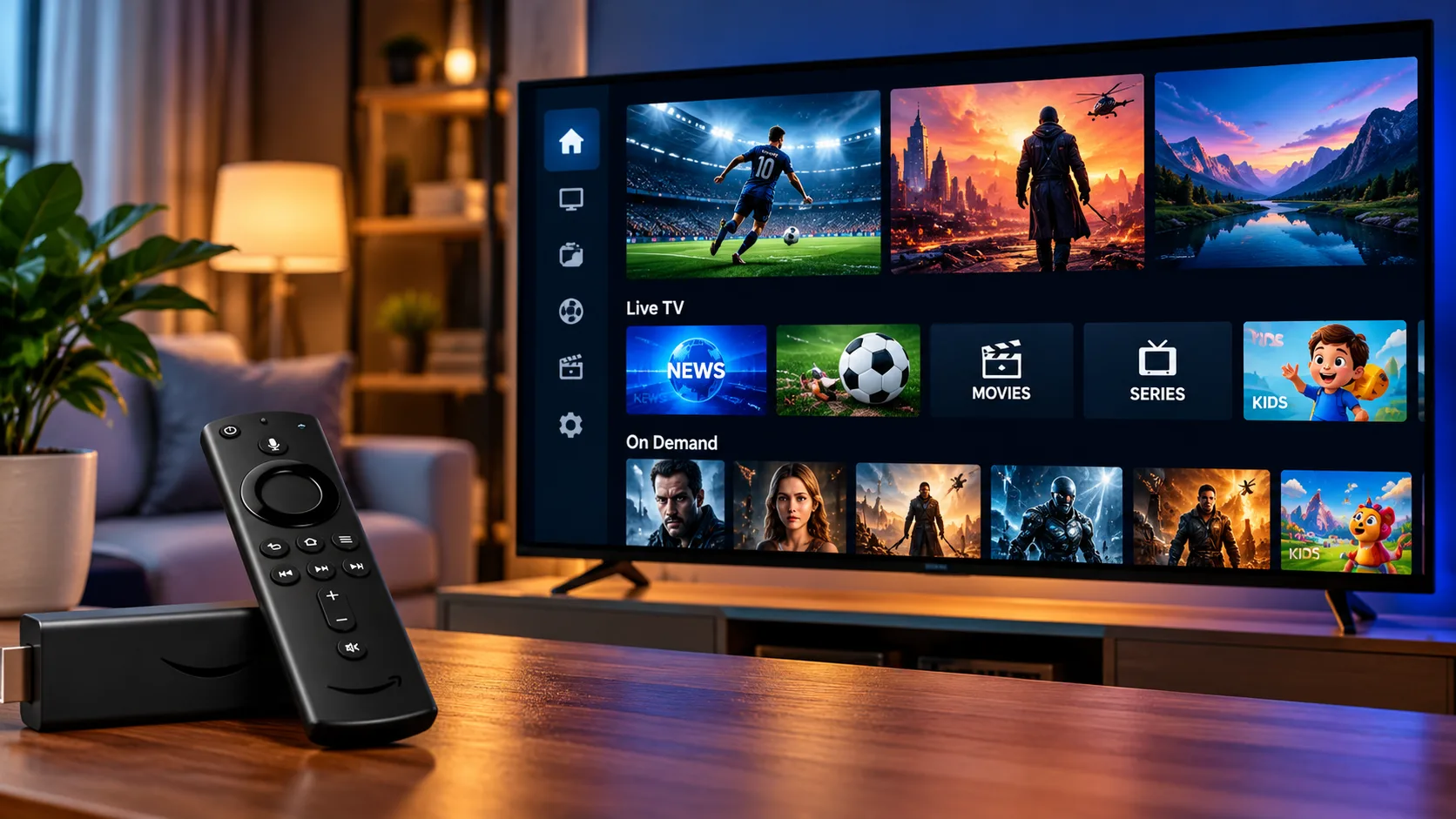
Amazon’s Fire TV devices have become one of the most popular ways to stream television in Sweden, and setting up IPTV on Fire TV is easier than most people expect. A small stick behind the television, a stable connection, and a compatible player app are all it takes. This guide covers the hardware, the apps, each installation step, common problems, and the legal points worth understanding before you start, so you can go from unboxing to your first live channel without guesswork.
Why Fire TV Works So Well for IPTV
Fire TV runs Fire OS, a version of Android, so it supports the same IPTV player apps found on Android boxes. The remote control is simple, the hardware is affordable, and the stick plugs into any HDMI port, which means even an older television can become a smart one. Because the device does nothing except run apps, it usually feels faster than the built-in software on many smart TVs.
Choosing the Right Fire TV Model
Not every model performs equally, and the right choice depends on how you watch.
Fire TV Stick Lite and Standard
These entry-level sticks handle HD streams well. However, large channel lists and electronic programme guides can make them feel slow, so they suit occasional viewing on a single television.
Fire TV Stick 4K and 4K Max
These models have stronger processors, more memory, and support for 4K with HDR. The Max version adds faster Wi-Fi, which helps during live sport. For daily IPTV use, either of the 4K models is the safer investment, and the Fire TV Cube offers similar benefits for people who want even more power.
What You Need Before You Start
Preparation saves time. Make sure you have the following ready:
- A Fire TV device connected to the television and your Amazon account
- A stable internet connection, ideally 10 Mbps or more for HD and 25 Mbps for 4K
- An active IPTV abonnemang with login details, such as a username, password, and server address, or an M3U link
- A smartphone or keyboard, which makes typing long addresses much easier
Step-by-Step: Installing an IPTV Player on Fire TV
Step 1: Install a Player From the Amazon Appstore
The simplest route is a player that already exists in the Appstore. Open the search icon on the home screen, type the name of the app, and select download. IPTV Smarters Pro is a common choice because it supports Xtream Codes login and shows live channels, films, and series in one clear interface.
Step 2: Allow Unknown Apps if Needed
Some players, such as TiviMate, are not always listed in the Appstore. In that case, open Settings, choose My Fire TV, then Developer Options, and enable installation from unknown sources. On newer versions of Fire OS, you allow this per app instead, usually for the Downloader app. Switch it off afterwards.
Step 3: Use Downloader for Manual Installation
Install the free Downloader app from the Appstore, open it, and enter the official download address of your chosen player. Always take the file from the developer’s own website, never from a random link, because modified files can contain malware. When the download completes, select Install, then open the app.
Step 4: Add Your IPTV Login Details
Open the player and choose how to log in. The Xtream Codes option asks for a name, username, password, and server address. The M3U option asks for a single playlist link. Enter the details carefully, confirm, and wait a minute or two while the channel list and programme guide load. Detailed device-specific walkthroughs are available in these installation instructions, which cover several popular apps and devices.
Setting Up the Programme Guide and Favourites
Once channels appear, spend a few minutes organising them. Mark your most-watched channels as favourites so you do not scroll through thousands of entries every evening. Check that the EPG, the electronic programme guide, shows the correct times. If the schedule looks wrong, set the time zone on the device to Europe/Stockholm and refresh the guide in the player settings.
Improving Streaming Quality on Fire TV
Good picture quality depends as much on your network as on the app. Fire TV sticks often sit behind the television, where the Wi-Fi signal is weaker. Use the small HDMI extender that comes in the box to move the stick away from the back panel. For the most reliable result, add an Ethernet adapter and connect the device directly to your router. Clear the app cache every month, close apps you are not using, and restart the device occasionally. If the picture still stutters, try lowering the quality for a moment to find out whether bandwidth is the cause.
Is It Legal to Use IPTV on Fire TV in Sweden?
The device and the player apps are perfectly legal. What matters is the source of the channels you watch. Swedish upphovsrätt protects broadcasters, film studios, and sports organisations, and their rättigheter apply to online streams just as they do to traditional television. Illegal streaming of unlicensed content can bring consequences, because myndigheter and rights holders actively pursue unauthorised services, and böter are possible in some cases. Unlicensed servers are also more likely to disappear without warning. Choosing a laglig IPTV provider with clear terms and a transparent subscription is the safest approach. Comparing the available IPTV subscription plans helps you understand how duration and the number of devices differ.
Troubleshooting Common Fire TV Problems
The App Will Not Open or Crashes
Restart the Fire TV, then update the app. If the problem remains, uninstall it and install it again. A full storage space can also cause crashes, so remove apps you no longer use.
Channels Do Not Load or the List Is Empty
Check the username, password, and server address for typing errors or extra spaces. Confirm that the subscription is active and that the playlist link has not expired.
Buffering and Freezing
Test the connection speed on the Fire TV itself. Move closer to the router, use Ethernet, and avoid heavy downloads on other devices during live matches.
The frequently asked questions page also explains many of these issues in more detail.
How to Compare IPTV Providers Before Installing
Because the player app is only half of the experience, it pays to look closely at the service behind it. Review the channel range, supported quality levels, device compatibility, and the support options. Clear information about streamingtjänster, sports, films, and series shows that a provider is transparent about what it offers. Other providers, such as Monster IPTV, publish their own information online, which makes side-by-side comparison straightforward.
Final Thoughts
A good viewing setup comes down to a few reliable habits: choose a capable model, install a trusted player, enter your login details carefully, and give the device a strong network connection. Keep the legal side in mind by relying on a licensed provider, and review your settings every few months. It is sensible to test a few channels in different quality levels before settling into a routine. For anyone who would like more information or wants to ask questions directly, it is also possible to contact via WhatsApp here: