

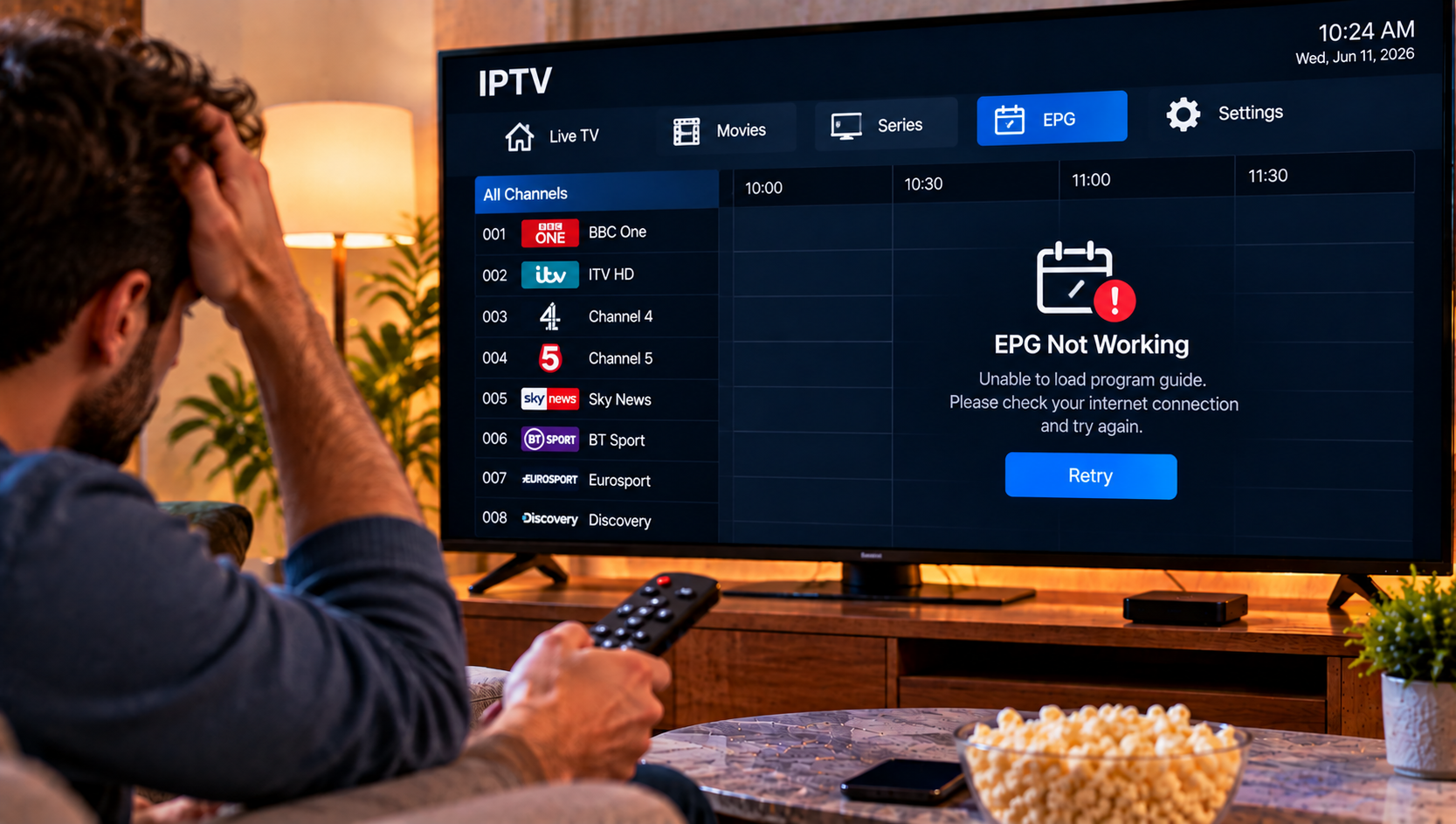
When your iptv epg not working problem appears, live channels may still play while the television guide shows No Information, blank schedules, wrong program times, or failed update messages. The Electronic Program Guide is a data layer, so missing listings do not always mean the IPTV subscription itself is broken. The cause may be an outdated EPG source, a failed download, incorrect Xtream Codes details, app cache problems, timezone settings, network errors, or missing channel mapping. The fastest fix is to identify whether the issue affects every channel, one app, one device, or only a few stations.
IPTV EPG Not Working: Start With the Basics
Begin by checking whether live television still plays. If channels open normally but the guide is blank, focus on EPG data rather than the stream itself. If both channels and guide data fail, the account, server address, internet connection, or provider may be the real problem.
Close the IPTV app, reopen it, and trigger a manual EPG refresh.
Viking IPTV users can compare their setup with the installation instructions before changing advanced settings.
Understand What the EPG Actually Does
An Electronic Program Guide provides program names, start times, end times, descriptions, and schedule information for supported channels. It does not normally carry the live video stream itself.
Your player may be able to reach the channel server but fail to download the separate XMLTV or provider supplied guide data.
Some apps obtain the EPG automatically through Xtream Codes. Others require a separate EPG URL when the playlist is added through M3U.
Force a Manual EPG Update
Refresh the Guide Inside the App
Most IPTV players include an EPG update option in settings. Open the guide or playlist settings and look for Refresh EPG, Update EPG, Download Guide, or a similar command.
After starting the update, wait before pressing it repeatedly. Large guide files can take time to download, unpack, match with channels, and save locally.
If the update reports success but listings remain empty, restart the app once more and reopen the television guide.
Check the EPG URL
If you use an M3U playlist, the guide source may be separate from the channel playlist. Confirm that the EPG address is complete and current.
A small copying error, expired address, incorrect protocol, or extra space can stop the guide from loading. If your provider recently changed its server domain, an older EPG link may no longer respond.
External XMLTV sources can also stop updating. If the file cannot be reached in another compatible application, the issue may be with the source rather than your main IPTV player.
Check Xtream Codes Details
Xtream Codes commonly uses a server address, username, and password to retrieve channels and related data. All fields must match the account information.
If you recently changed the server URL, recheck the entire entry rather than editing only one field. A valid login in one app but a failed guide in another can point to an application-specific configuration issue.
Clear the App Cache Carefully
Corrupted temporary files can prevent a fresh guide from replacing old data. On Android-based devices, open system settings, find the IPTV application, and clear its cache.
Do not select Clear Data unless you have saved your login and configuration details. Clearing application data can remove playlists, favorites, settings, and credentials.
This gives the player a clean opportunity to rebuild its local EPG database.
Why Only Some Channels Show No Information
A partial guide failure is different from a completely empty EPG. If major channels show correct schedules while a few stations remain blank, your application may already be working correctly.
The missing stations may not exist in the guide source, or their channel identifiers may not match the EPG database. Channel names alone are not always enough because many players rely on identifiers that connect each playlist entry with a guide record.
In this situation, contact the provider if the missing channels matter to you rather than repeatedly reinstalling the app.
Fix EPG Wrong Time
Sometimes the guide loads but every program appears one or two hours early or late. That usually points to a timezone or EPG offset problem rather than missing data.
Check the date, time, timezone, and automatic clock settings on the television or streaming device. Sweden uses Central European Time and observes seasonal clock changes, so an incorrect device timezone can shift the entire guide.
Some IPTV apps also include EPG Time Shift or EPG Offset. Adjust this only when the same consistent difference appears across many channels.
Test the Internet, DNS, and VPN
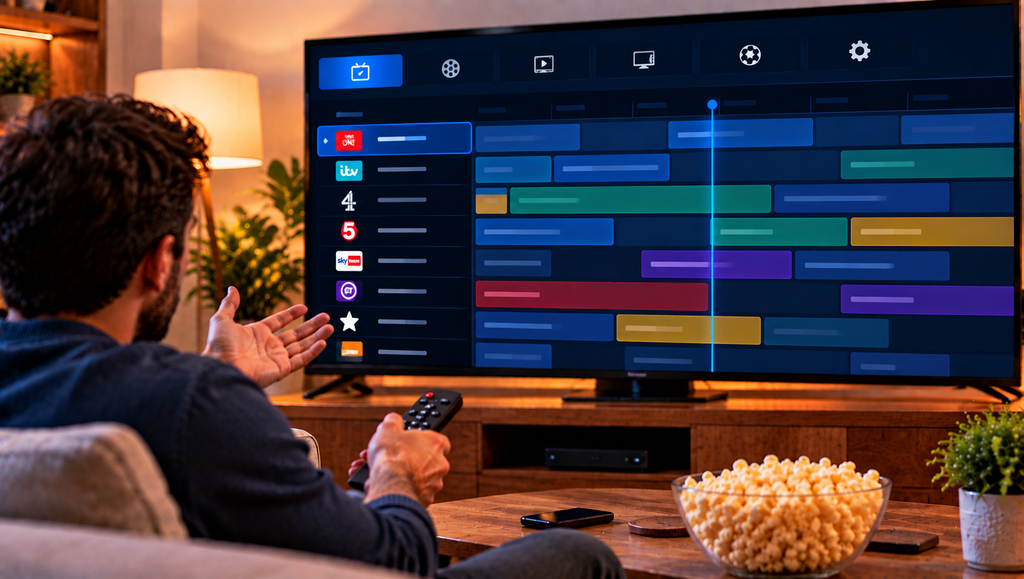
Guide data must be downloaded from a server. A weak connection, DNS problem, firewall rule, or unstable route can interrupt that request even when cached channels still appear in the app.
Restart the router and test the device again. If possible, compare Wi Fi with Ethernet or a mobile hotspot.
If you use a VPN, test the guide once with it disconnected.
Compare Another Player or Device
Testing the same account elsewhere is one of the quickest diagnostic steps. If the EPG works in another app, the provider is probably supplying valid guide data and the problem is local to the original application.
If the guide fails on every device, ask whether the provider is experiencing maintenance or EPG server problems.
The Viking IPTV FAQ can help with common account and device questions. General information from JA IPTV can provide another reference for IPTV terminology, although account-specific issues should be checked with the service supplying the credentials.
EPG Data, Rights, and IPTV Use in Sweden
A functioning television guide does not determine whether a service is lawful. IPTV is a delivery technology, while content distribution depends on permissions and rights.
In Sweden, viewers should consider upphovsrätt and whether a provider has the necessary rättigheter to distribute the channels, films, series, and sports included in an abonnemang. Laglig IPTV depends on authorization, not on how complete the EPG looks.
Services associated with illegal streaming can create legal concerns. Swedish myndigheter and rights holders may act against unauthorized distribution, with enforcement measures or böter possible depending on the circumstances.
A Reliable Order for Troubleshooting
First confirm that live channels still work. Then force an EPG refresh, verify the guide source, check Xtream Codes or M3U details, clear the cache, confirm device time settings, and test the network. After that, compare another player and another device.
If only a few channels lack schedules, report those channel names rather than resetting everything. If every device fails at the same time, contact the provider and ask whether the guide server or account configuration has changed.
Final Advice
Missing guide data is usually easier to solve when you separate the live stream from the EPG source and test one layer at a time. Keep current login details, avoid deleting app data without a backup, and note which channels or devices are affected before contacting support. It is sensible to confirm the guide source and device time settings before reinstalling anything. For anyone who would like more information or wants to ask questions directly, it is also possible to contact Viking IPTV through WhatsApp.
