
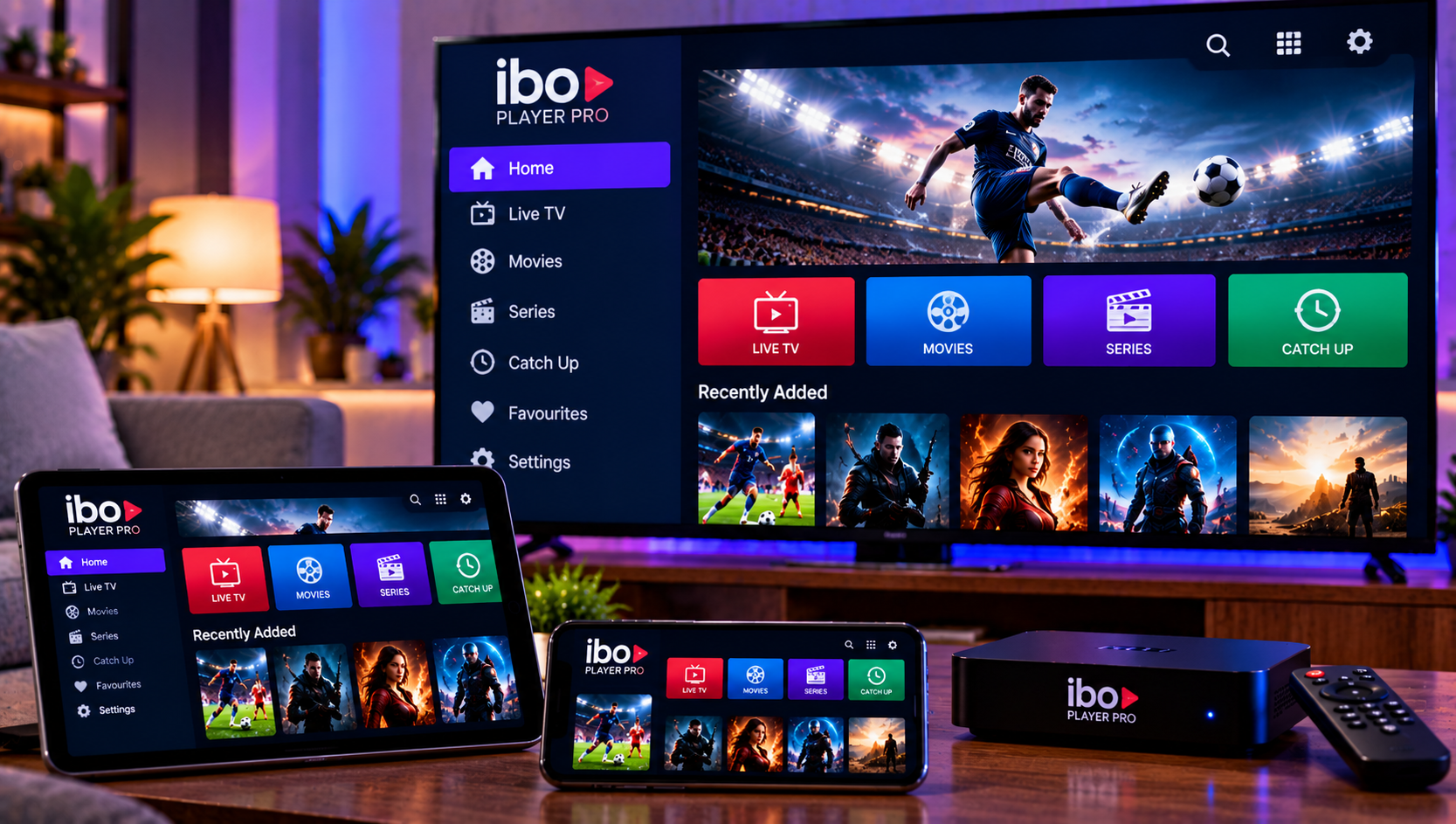
The IBO Player Pro app is made for people who already have a legal playlist and want a clean way to watch live TV, movies, series, and sports on different screens. The official site describes it as a media player, not a channel seller, and clearly warns users not to use illegal content. Its main value is practical: load an M3U playlist, organize categories, use favorites, manage parental control, and play streams on Android TV, Fire TV, Samsung TV, Windows, and other supported platforms.
ibo player pro setup basics
Start with the details from your IPTV provider. You may receive an M3U URL, M3U8 playlist, portal link, device code, or account credentials. The app is designed around playlist playback, so correct copying matters. One extra space, missing character, or expired link can make the playlist appear empty.
Before installing, confirm your device type. The official download page mentions Android TV, Android sticks, smartphones, tablets, Amazon Fire TV, Samsung TV, Windows Desktop, and ZEASN or Whale OS. Microsoft Store availability also makes Windows setup easier for users who prefer testing playlists on a PC before adding them to a television.
Player, not content source
The app does not provide channels, films, series, or sports rights. It simply plays the content source you add. On Viking IPTV’s channel overview, you can see how live TV, sports, films, and series can be grouped clearly, which is the same kind of organization you should expect inside a well-prepared playlist.
Installation on common devices
For Android TV or Fire TV, use the official APK or app source recommended by the developer. Avoid modified files from private chats, because cracked apps can expose playlist details or damage device security. On Samsung TV, search the TV app store first and check that you are installing the correct player.
For Windows, use the store version when available. A desktop installation is useful for troubleshooting because you can paste links more easily, test network behavior, and compare playback with another player such as VLC.
First launch
After opening the app, note any device ID, MAC address, or activation code shown on screen. Some playlist managers require this information before a list can be uploaded.
Adding your playlist
The official workflow is simple: register or open the app, add playlists in the app or through the website, then activate the account through in-app purchase or the supported activation method. If your provider gives an M3U link, paste it exactly. If your provider gives a file, upload or import it according to the app’s instructions.
Viking IPTV’s installation guides are helpful when fields such as playlist URL, profile name, server address, EPG source, DNS, VPN, and cache settings feel unclear. Set up one profile fully before changing advanced settings.
Testing after upload
Let the list load completely. Open one Swedish channel, one sports channel, one movie, and one series episode. Check audio sync, subtitles, startup time, favorites, category names, and whether the player resumes smoothly after restart.
Activation and app costs
Many IPTV players are free to install but require activation for continued use. The official site says activation can be handled through in-app purchase. Treat that fee as separate from your IPTV subscription. Paying for a player unlocks the app; it does not pay for channels or viewing rights.
Before activating, test the interface, remote control comfort, search, subtitle behavior, and playlist loading. If you plan to use several devices, check whether activation is per device or account-based.
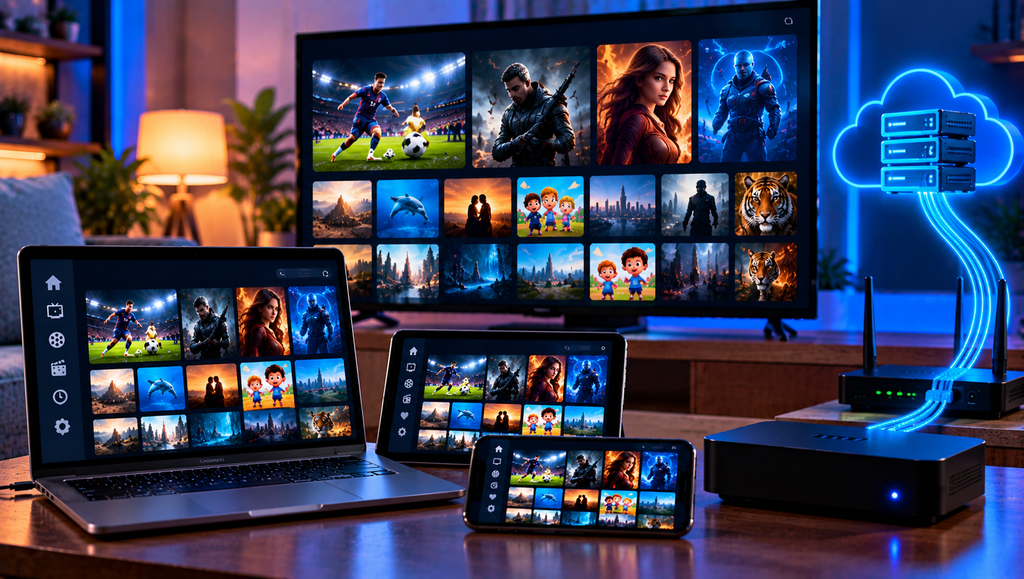
Keep proof of activation
Save receipts, activation emails, device IDs, and support replies. This helps if a TV is reset, an app is reinstalled, or you change devices later.
Features worth using
The app highlights a simple interface, support for all screen resolutions including 4K, fast streaming, MX and VLC playback support, multilingual options, favorites, and parental control. These features matter most when your playlist is large.
Favorites keep daily channels close. Parental control helps families hide adult categories or sensitive content. Language, subtitle, and audio track options are useful for movies and series. Fast playback support can reduce frustration when switching channels during sport.
Organizing large lists
Huge playlists can become slow or confusing. Remove dead groups if possible, hide unwanted categories, and create favorites for Swedish channels, news, sport, films, children’s content, and series. A smaller organized list feels better than a giant messy list.
Subscription fit and support
Your provider controls live channels, VOD, catch-up, EPG quality, simultaneous streams, and account limits. The player only displays what the subscription delivers. Before relying on a longer plan, confirm device rules, renewal period, number of connections, and support method on Viking IPTV’s subscription page.
A neutral comparison with Monster IPTV can show how another provider describes package structure and device support, but every service should be judged separately by rights, terms, support, payment, and stability.
Support questions to ask
Ask whether your account supports M3U, whether EPG is included, how many screens can run at once, and what information support needs if channels stop working.
Legal and safety checks in Sweden
IPTV is a delivery method, not automatic permission to watch protected content. Channels, sports, movies, and series are controlled by copyright and broadcasting rights. Swedish users may see terms such as upphovsrätt, laglig IPTV, abonnemang, streamingtjänster, myndigheter, böter, rättigheter, and illegal streaming. These terms matter when choosing any playlist or provider.
Ask how rights are handled for Sweden and keep written answers. Avoid anonymous sellers, private payments, unrealistic premium promises, and instructions that require disabling device security. Read frequently asked questions before changing VPN, DNS, cache, or advanced app settings.
Protect playlist data
Never post M3U links, portal addresses, usernames, passwords, device IDs, or MAC details in forums. They may contain account identifiers and can lock your subscription if shared.
Troubleshooting common problems
If the list is empty, check spelling, link expiry, playlist format, and whether the activation is complete. If live TV works but movies fail, the VOD server may be separate. If EPG is missing, ask for the correct guide URL or refresh the cache. If everything buffers, test Ethernet, restart the router, compare another app, and check whether a VPN is causing slower routing.
Final testing method
Test the same playlist on the same device during normal evening hours. Score setup, guide data, search, subtitles, favorites, remote control comfort, picture quality, and support clarity. The best setup is the one that works calmly for your household without daily fixes.
For Windows users, desktop testing helps because copying long URLs is easier with a keyboard. If the same list works on Windows but fails on TV, the issue may be app compatibility, memory, or remote setup rather than downtime.
Final thoughts
A good setup combines a trusted player, a clean playlist, stable internet, clear activation, safe account handling, and legal rights for Sweden. A natural recommendation is to test the app with your real device and playlist before making it your main viewing option. For anyone who would like more information or wants to ask questions directly, it is also possible to contact via WhatsApp here: